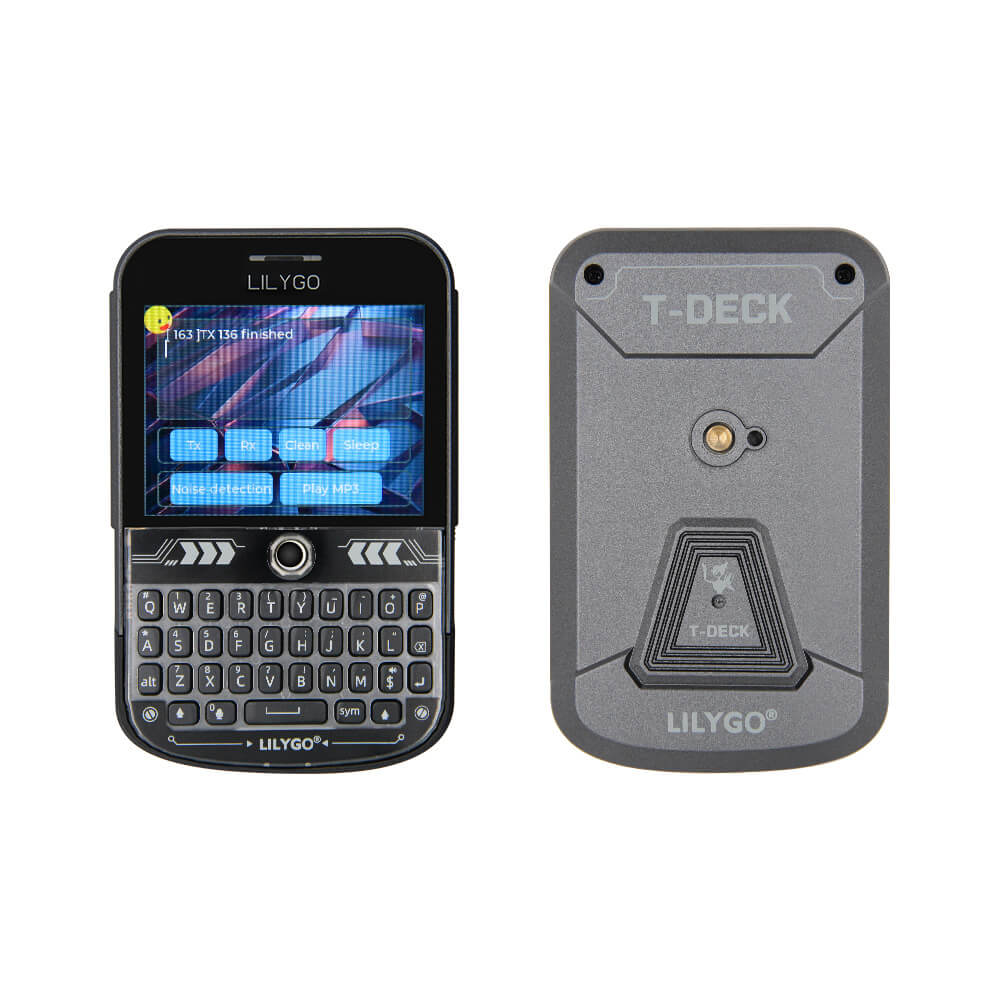
LilyGo T-Deck Plus
Buy links may be affiliate or referral links to Rokland, Seeed Studio and other vendors. If you buy through one, NodakMesh may earn a small commission at no extra cost to you.
IMPORTANT: Attach Antenna Before Powering On!
Always connect an antenna to your device BEFORE plugging in USB or turning it on. Transmitting without an antenna can permanently damage the LoRa radio chip. Even a few seconds of transmission without an antenna can cause irreversible damage. This applies to flashing AND normal use.
Step 1: Enter DFU/Bootloader Mode
Method: Power Switch + Trackball (REQUIRED)
- 1 Make sure the device power switch is OFF
- 2 Press and hold the TRACKBALL down (push the ball like a button)
- 3 While holding the trackball, flip the POWER SWITCH to ON
- 4 Keep holding for 2-3 seconds
- 5 Release the trackball - device is now in DFU mode
- 6 Screen will be BLACK with backlight OFF - this confirms DFU mode
- 7 If backlight is ON, repeat these steps
Note: Alternative: Hold trackball, press side RST button, release both. If issues persist, try the web flasher "1200bps reset" button first.
Step 2: Install Drivers (if needed)
Usually not required
Step 3: Flash Firmware
Open the web flasher for your chosen firmware in Chrome or Edge browser:
Step 4: Post-Flash Configuration
MeshCore Setup
- Device will reboot with MeshCore interface
- GPS will begin acquiring satellites
- Full standalone operation without phone
- Built-in maps with GPS tracking
- 2000mAh battery for extended use
Meshtastic Setup
- Device will reboot with Meshtastic interface
- GPS-enabled for position tracking
- Standalone messaging via keyboard
- Large battery for all-day use
US Users: Set frequency/region to 915 MHz (US). This ensures compatibility with the NodakMesh network and other US mesh networks!
Tips & Notes
- Same DFU process as T-Deck - hold trackball while connecting
- GPS included for location tracking and mapping
- Often available pre-flashed with Meshtastic
- Premium build quality over standard T-Deck