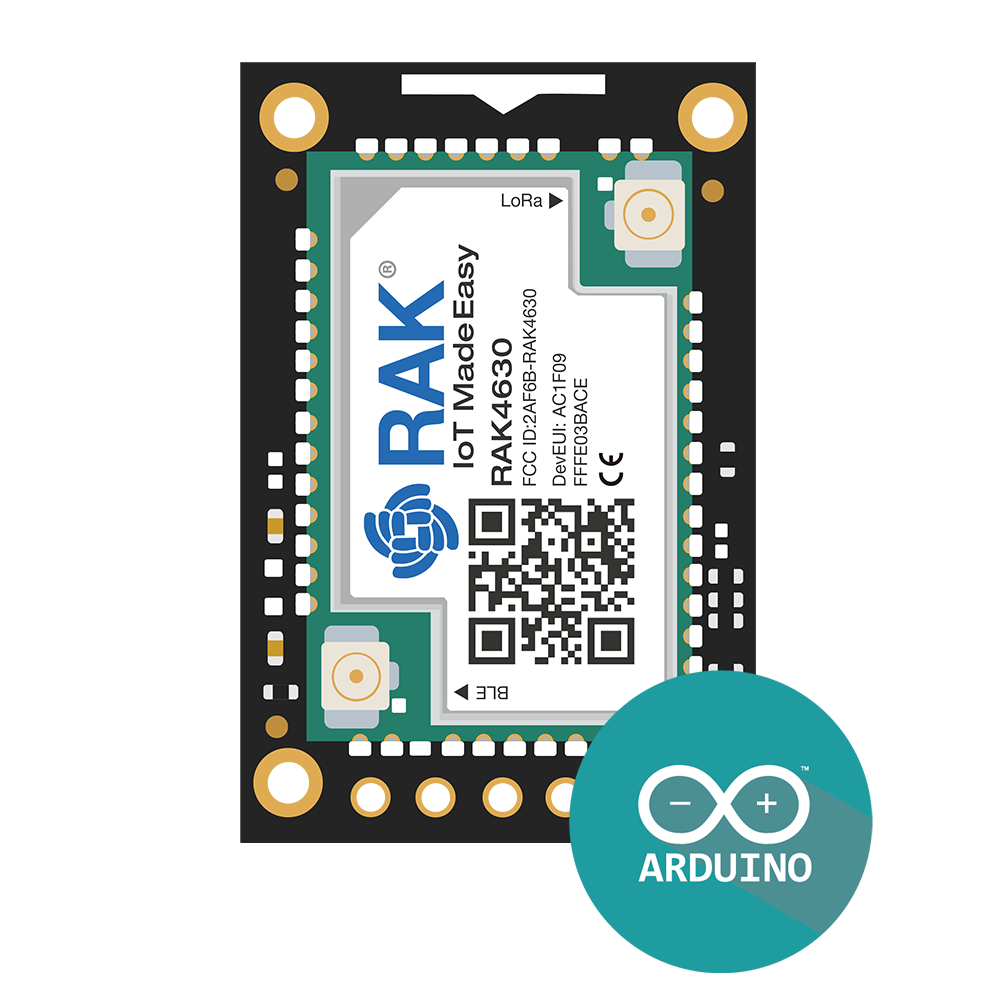
RAK WisBlock (RAK4631)
Buy links may be affiliate or referral links to Rokland, Seeed Studio and other vendors. If you buy through one, NodakMesh may earn a small commission at no extra cost to you.
IMPORTANT: Attach Antenna Before Powering On!
Always connect an antenna to your device BEFORE plugging in USB or turning it on. Transmitting without an antenna can permanently damage the LoRa radio chip. Even a few seconds of transmission without an antenna can cause irreversible damage. This applies to flashing AND normal use.
Step 1: Enter DFU/Bootloader Mode
Method: Double-Tap Reset (UF2 Bootloader)
- 1 Connect the WisBlock base board via USB
- 2 Quickly double-tap the RESET button on the base board
- 3 Device will appear as a USB drive named "RAK4631"
- 4 Web flasher should now detect the device
- 5 Or drag .uf2 file to the drive
Note: Make sure the RAK4631 core module is properly seated in the base board
Step 2: Install Drivers (if needed)
nRF52840 appears as USB mass storage
Windows
No driver required
macOS
No driver required
Linux
No driver required
Step 3: Flash Firmware
Open the web flasher for your chosen firmware in Chrome or Edge browser:
Step 4: Post-Flash Configuration
MeshCore Setup
- Device will reboot after flashing
- Connect via Bluetooth for configuration
- Set frequency to 915 MHz (US)
- Configure node type based on use case
- Modular design allows adding sensors
Meshtastic Setup
- Device reboots with Meshtastic
- Connect via Bluetooth app
- Set region to US
- Add WisBlock modules for extra features
US Users: Set frequency/region to 915 MHz (US). This ensures compatibility with the NodakMesh network and other US mesh networks!
Tips & Notes
- Modular system - add GPS, sensors, displays as needed
- Professional-grade build quality
- Excellent for solar repeater builds
- Very low power consumption
- Multiple base board options available