Meshtastic Not Seeing Other Nodes? How to Fix It
An empty Meshtastic node list or messages that never deliver, fixed in order of likelihood: region, preset, channel, transmit, timing, filters and hops.
On this page
- 1. Is the Region Set?
- 2. Are You on the Same Preset as Your Mesh?
- 3. Is Your Primary Channel the Default?
- 4. Is Transmit Enabled?
- 5. Antenna and Hardware
- 6. Give It Time, or Ask
- 7. Check the App’s Filters
- 8. Nodes You Can See but Can’t Reach
- 9. Hop Limit
- 10. What the Message Status Icons Mean
- 11. Is the Channel Too Busy?
- 12. Firmware 2.8 Changes That Hide Nodes
- Still Nothing?
Your Meshtastic node is on, the app is connected, and the node list is empty. Or you can see nodes, but nothing you send gets a reply. It’s the most common problem new users have, and the hardware is usually fine. Meshtastic nodes only hear each other when several settings match exactly; one of them is probably off.
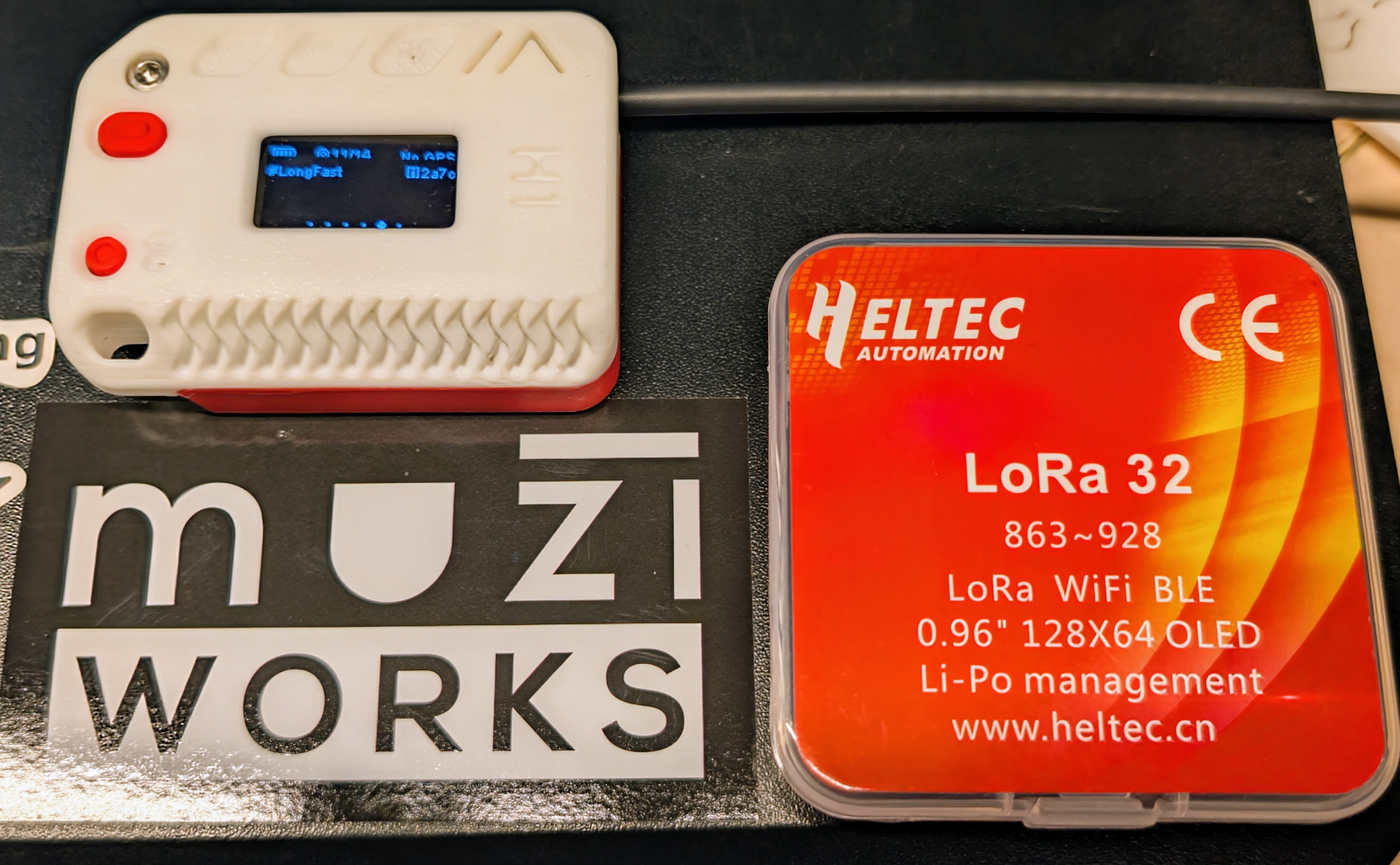
Our Heltec V3 on the default #LongFast channel, from our Heltec V3 review.
This guide goes through the causes in order, most likely first. It’s checked against firmware 2.7.26 (the current stable release) and 2.8.1 (the current alpha), the Meshtastic docs, and the Android app’s source. Where 2.8 behaves differently, we say so.
1. Is the Region Set?
A node with no region set does nothing on the radio: it won’t transmit, and it drops everything it receives too. The Meshtastic docs only mention the transmit side, but the firmware blocks both.
On a new device, the screen shows a welcome message and a region picker, and the Android app shows a Set your region card. In the US, pick US. In Europe and the UK, pick EU_868.
2. Are You on the Same Preset as Your Mesh?
The modem preset (Long Fast, Medium Fast and so on) sets the radio’s bandwidth and speed. Two nodes on different presets can’t hear each other at all. Most US meshes run Long Fast, the default.
If you’re on firmware 2.8 and set the region from the device’s own screen, a new US node starts on LongTurbo, which can’t hear Long Fast. Switch the preset to Long Fast. Our LongTurbo vs LongFast post explains why it happens.
3. Is Your Primary Channel the Default?
This one catches a lot of people, because it’s not obvious that a channel name changes your radio frequency.
Meshtastic picks the frequency from the primary channel’s name. A blank name uses the preset name, so on Long Fast every default node lands on the same frequency (906.875 MHz in the US). Rename the primary channel, even to make a private group, and your node moves to a different frequency where nobody else is.
The channel key matters too. Your node list only fills in from packets your radio can decode, so nodes using a different key on your channel never appear, even though your radio still relays their traffic.
To join a public mesh:
- Leave the primary channel at its default: blank name, default key.
- Put private groups on secondary channels (1 to 7). They share the primary channel’s frequency.
- Leave Frequency Slot at 0, which means automatic, unless your local mesh uses a specific slot.
Our channels guide shows how to set up a private secondary channel.
4. Is Transmit Enabled?
Transmit Enabled is on by default, but it can get switched off. The Android app shows a warning card when it is: the device “can receive but will not send anything over LoRa.”
Firmware 2.8.1 turns it off in more situations than 2.7:
- a Transmit Enabled toggle on the device’s own screen
- setting the region back to unset
- the placeholder ham callsign N0CALL in licensed mode
- settings that failed to load
To check from the CLI, run meshtastic --get lora and look at tx_enabled.
5. Antenna and Hardware
- Check the antenna is attached and tight. Meshtastic’s own guide warns never to power a radio without one, because transmitting into nothing can damage the radio chip.
- Check the board’s band. An 868 MHz board in the US, or a 915 MHz board in Europe, has filters and an antenna tuned for the wrong band. The firmware doesn’t detect this, so a wrong-band board looks like it works and just hears very little. Our device guide notes which version to buy.
6. Give It Time, or Ask
A quiet mesh can take a while to show up. Nodes broadcast their node info (name and key) every 3 hours by default. When your node hears a node it doesn’t know, it sends its own node info and asks for a reply. A few cases skip that ask: routers and base nodes, a busy channel (25 percent utilization or more), and nodes more than a couple of hops beyond your hop limit. In 2.8.1, a node only asks while its node list is less than half full.
To speed things up:
- Request User Info (Android) or Exchange User Info (iPhone) on a node you can see, to get its name and key now.
- Traceroute shows the path to a node and whether it answers. You can send one every 30 seconds.
7. Check the App’s Filters
The Android node list has filters that can hide exactly the nodes you’re looking for: Hide offline nodes, Only show direct nodes, Exclude infrastructure, Exclude MQTT, Hide unheard nodes and Include unknown. Turn them off and look again.
With firmware 2.8.1, the Android app also shows a node in orange when it hasn’t been heard on your current LoRa settings. Nodes heard recently, within two hours, show their last-heard time in green.
8. Nodes You Can See but Can’t Reach
If your list shows nodes but your messages never reach them, some of them may be coming in over the internet, not the radio:
- MQTT nodes were heard through an MQTT server. They show no signal strength or hop count, and you may have no radio path to them at all.
- Some roles can’t take messages. The apps treat routers, sensors and trackers as unmessageable, and Client Mute nodes never relay anything. Client Hidden nodes don’t send node info.
In regions with a duty cycle limit, like EU_868, the firmware turns on Ignore MQTT automatically.
9. Hop Limit
The hop limit is how many times a message can be relayed. The default is 3 and the maximum is 7. A node more than three relays away won’t get your message, and it’s your hop limit that counts, since replies are sent with enough hops to come back.
If you’re at the edge of a mesh, raising it to 4 or 5 can help. Don’t raise it further without a reason: every extra hop costs everyone airtime. Firmware 2.8 also lowers hops automatically for background broadcasts on busy meshes, though never for text messages. See our traffic management post.
10. What the Message Status Icons Mean
In the Android app:
| Status | Means |
|---|---|
| Sending… (yellow cloud) | Queued in the app, not yet on the radio |
| Sending… (blue arrow) | Your radio has it and is sending |
| Delivered to recipient | The node you messaged confirmed it |
| Relayed, not confirmed by recipient | A DM was heard being relayed, but the recipient never confirmed |
| Delivered to mesh | A channel message was heard being relayed |
| Failed to deliver to mesh | Every retry ran out with nothing heard |
“Relayed, not confirmed” usually means the message left your area but didn’t reach the person, or their confirmation didn’t make it back. Firmware 2.7.26 tries 3 times; 2.8.1 tries 5 times for direct messages. These labels come from the current Android app source, so your version may word them slightly differently.
11. Is the Channel Too Busy?
When channel utilization passes 25 percent, nodes skip their automatic position, telemetry and node info broadcasts, and at 40 percent they stop answering node info requests. Your text messages still go out. In Europe, your own airtime is also limited to 10 percent per hour, and the app tells you how many minutes until you can send again.
12. Firmware 2.8 Changes That Hide Nodes
If you or your neighbors moved to 2.8:
- Packet signature policy. Leave it on Compatible. Strict drops unsigned packets, which hides every 2.7 node.
- Node numbers change on the upgrade, so old entries stay behind as ghosts while the same nodes reappear under new numbers.
- Very old firmware is dropped. 2.8 ignores packets from firmware older than about 2.3.
- Position is off by default on public channels, so nodes are missing from maps even when they’re on the mesh. See why your node disappeared from the map.
The 2.8 overview covers the rest.
Still Nothing?
If every setting matches and you still hear nobody, it may just be range. LoRa needs a fairly clear path, and a node indoors on a desk reaches far less than one in a window or up high. Check the Meshtastic map for nodes near you, try from somewhere higher, and consider a better antenna; our antenna guide covers what’s worth upgrading.
Setting up from scratch? Our Meshtastic getting started guide walks through every setting in order.
Comments
Related Posts
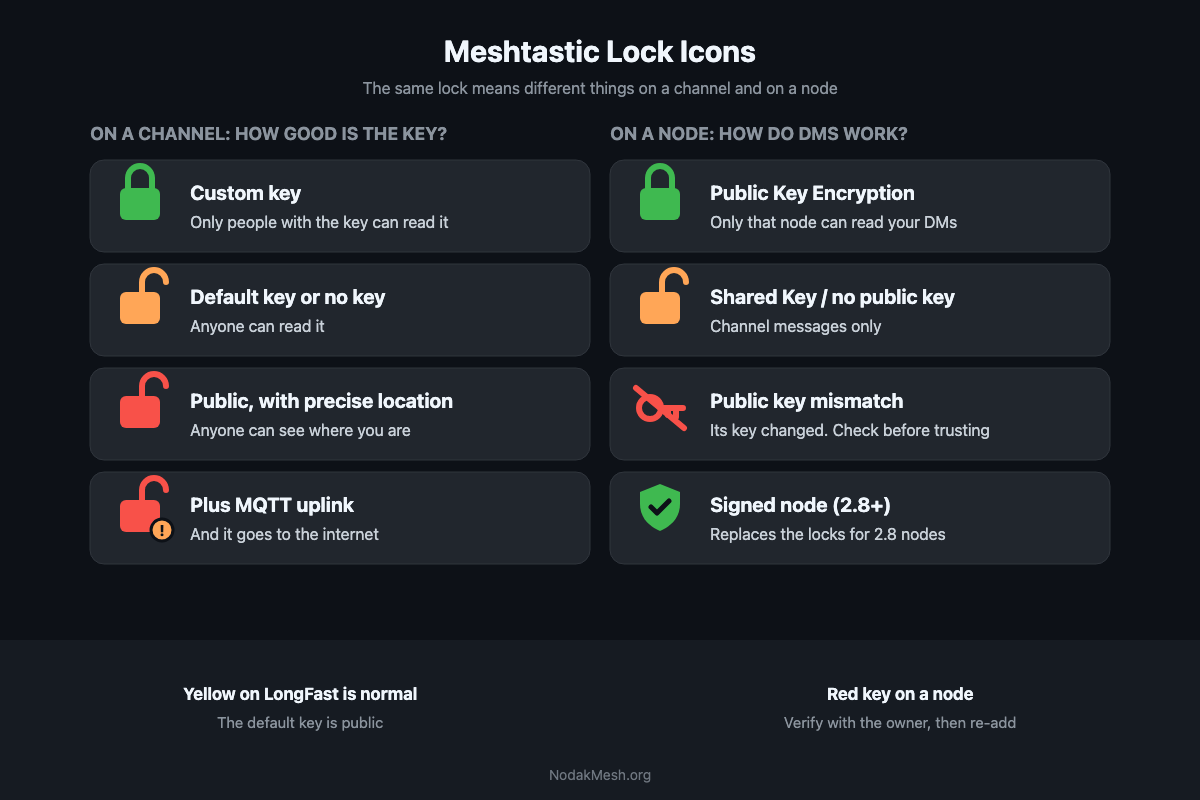
Meshtastic Lock Icons and Public Key Mismatch Explained
What the green, yellow and red locks mean in the Meshtastic app, why a node shows Public key mismatch and how to fix it, and the new 2.8 signed badges.
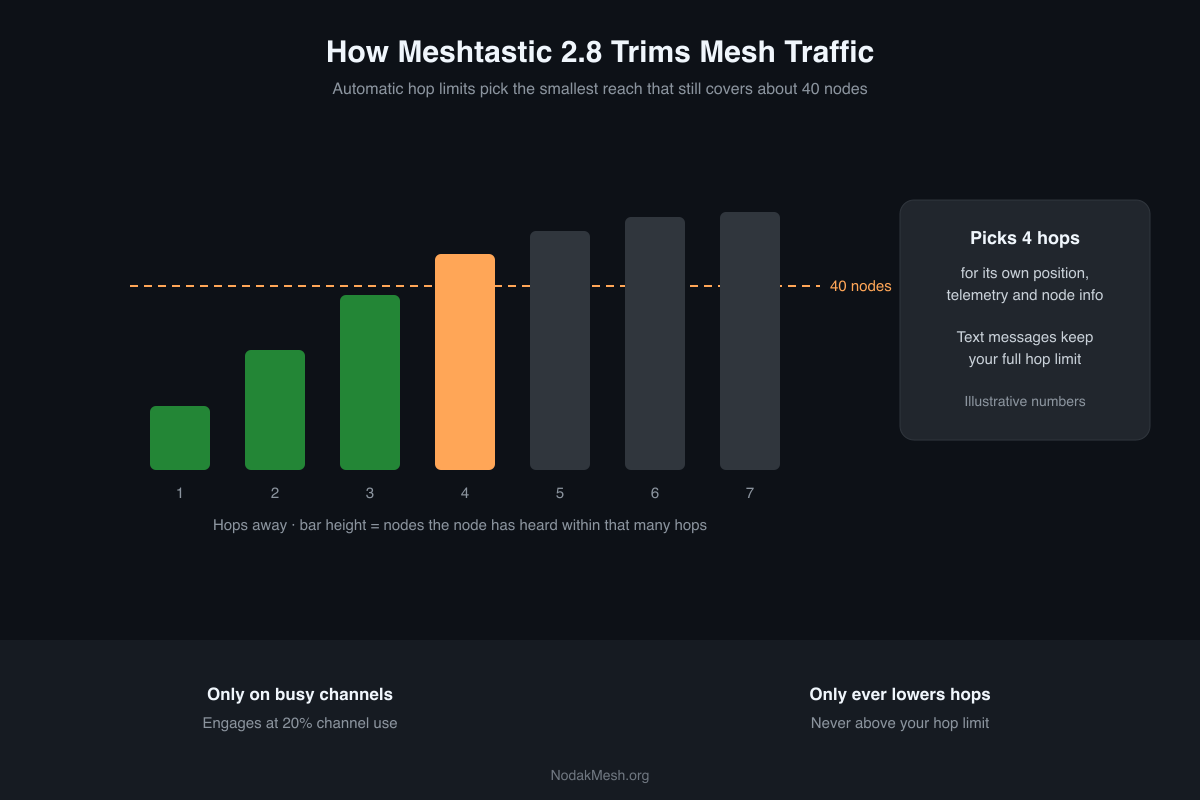
Meshtastic 2.8 Traffic Management and Automatic Hop Limits
Meshtastic 2.8 trims busy meshes with position dedup and automatic hop limits. What runs by default, what's opt-in, and what it means for your node.
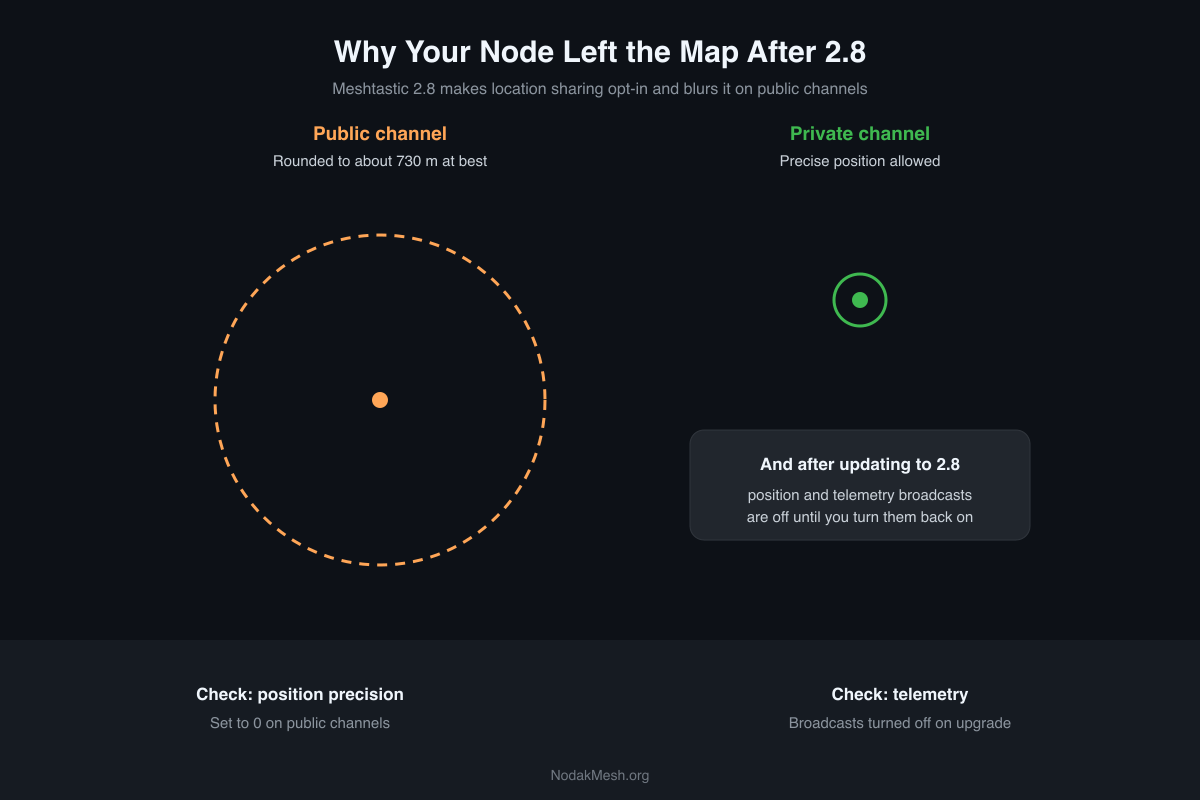
Meshtastic 2.8: Why Your Node Disappeared From the Map
Meshtastic 2.8 turns off position and telemetry sharing on public channels, even on upgrade. Why your node left the map and how to share again.