Meshtastic LongTurbo vs LongFast: Why New Nodes Hear Nothing
Meshtastic 2.8 starts new US nodes on LongTurbo, which can't hear LongFast meshes. Why it happens, how to check, and how to switch back.
If you flashed a new node with Meshtastic 2.8, picked US on the device’s own screen, and now see nobody on the mesh, the radio is probably fine. Your node is on LongTurbo, and nearly every US mesh, ours included, runs LongFast. The two presets can’t hear each other, so to your node the mesh doesn’t exist.
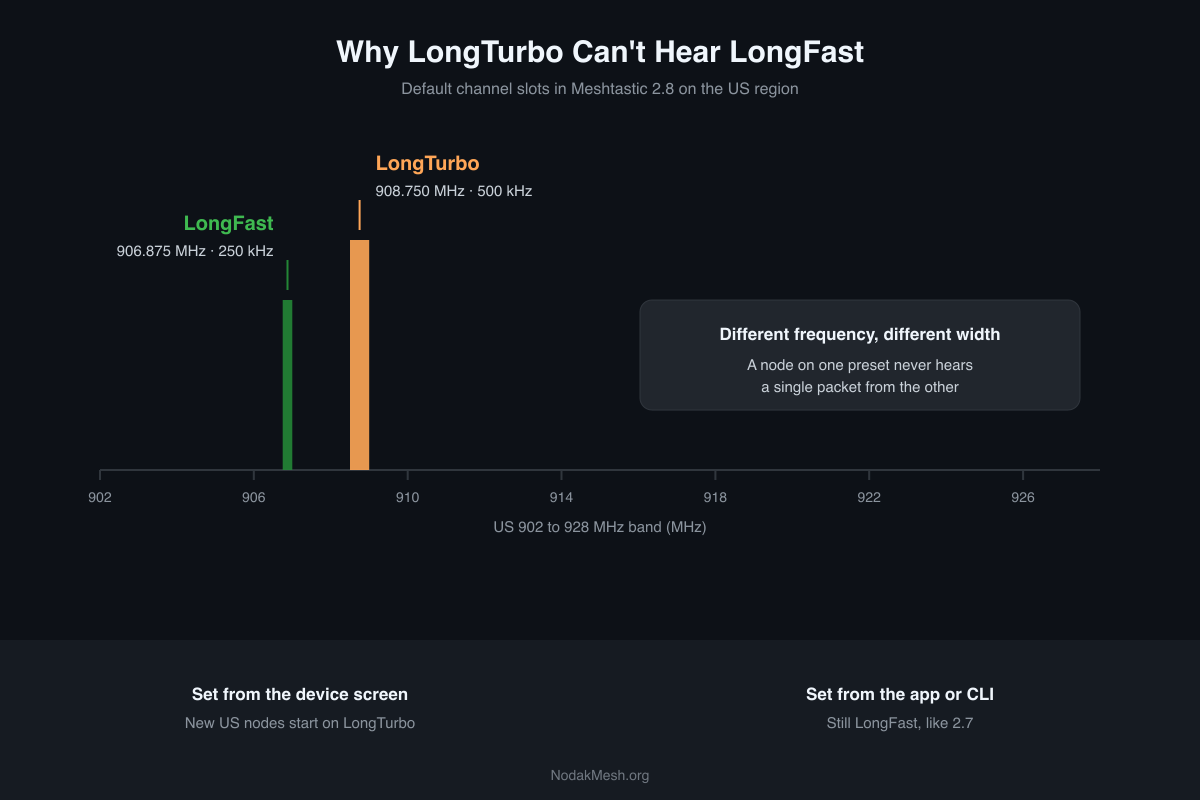
The fix takes about thirty seconds. Understanding why it happened takes a little longer, and it’s worth knowing before you set up the next node.
2.8.1 is still an alpha. Everything below comes from the 2.8.1 release notes, the pull request that made the change, the firmware source at the 2.8.1 tag, and Meshtastic’s own 2.8 announcement.
What Changed in 2.8
Starting with 2.8, a new node that gets its region set to US from the device screen is put on LongTurbo instead of LongFast. The change only applies during out-of-box setup. The firmware does it only when all of these are true:
- the region was unset (a brand new or freshly erased node)
- you picked US in the on-screen region menu
- the node was still on the factory LongFast preset
- the firmware build doesn’t pin its own default preset
Everything else is unchanged. Setting the region from the Android or iPhone app, the web client or the CLI still leaves the node on LongFast. A node upgraded from 2.7 keeps the preset it already had. The US region table itself still lists LongFast as its default. Only that one on-screen setup path was changed.
Outside the US, nothing changed. In Europe and the UK, the EU_868 region uses 869.4 to 869.65 MHz, a band only 250 kHz wide, so the 500 kHz Turbo presets aren’t allowed there at all.
That’s why this catches people out. The nodes most likely to hit it are the ones with a screen and buttons, like handhelds and trackers, set up the fast way, without a phone.
Why the Two Presets Can’t Talk
A Meshtastic preset fixes three radio settings: bandwidth, spreading factor and coding rate. Both of these use spreading factor 11, but the other two settings differ:
| LongFast | LongTurbo | |
|---|---|---|
| Bandwidth | 250 kHz | 500 kHz |
| Spreading factor | 11 | 11 |
| Coding rate | 4/5 | 4/8 |
| Default US frequency | 906.875 MHz | 908.750 MHz |
LoRa radios only decode a signal that matches their bandwidth and spreading factor, so a LongTurbo node treats a LongFast packet as noise. On top of that, they aren’t even on the same frequency.
Meshtastic picks the frequency by hashing the primary channel’s name, and the default channel name is the preset name. On the US band, “LongFast” lands on slot 20 of 104, at 906.875 MHz. “LongTurbo” lands on slot 14 of 52, at 908.750 MHz. That’s two different channels, each a different width. Meshtastic’s guide to finding your local mesh lists the same numbers.
Why Meshtastic Did It
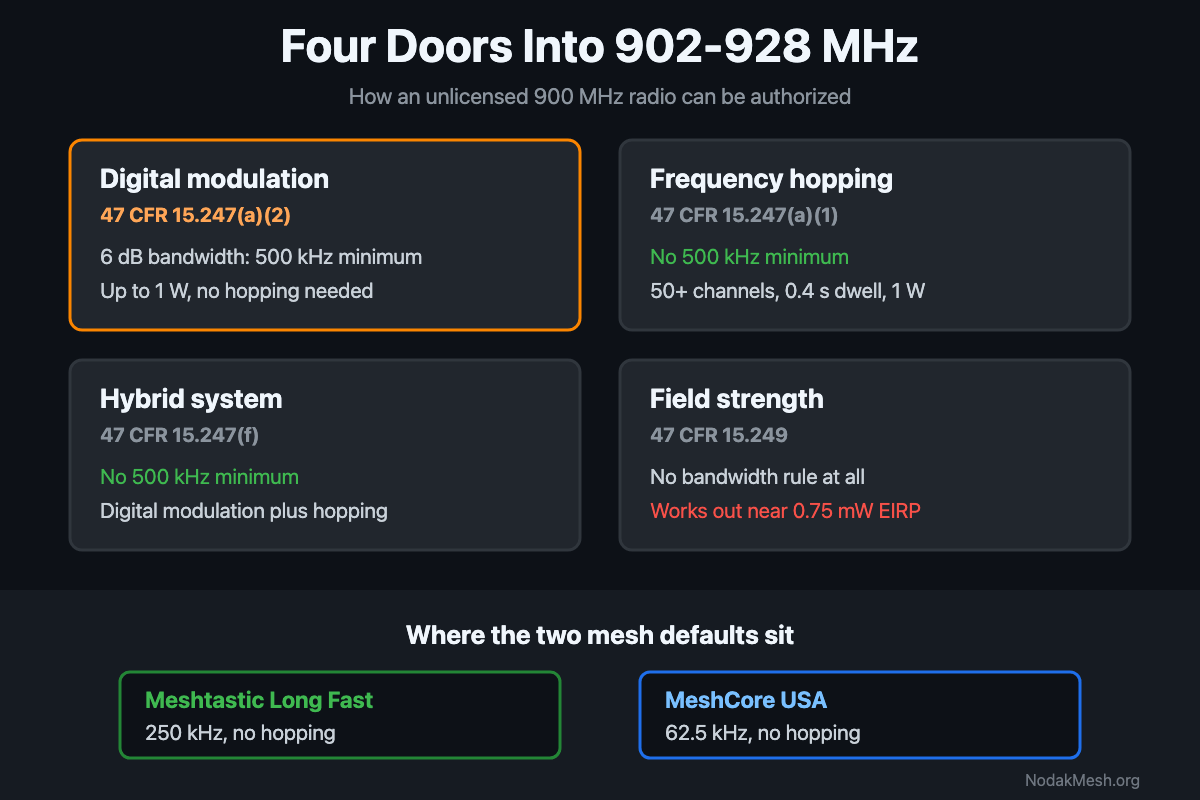
The pull request doesn’t give a reason, but Meshtastic’s 2.8 announcement does: FCC rules for full-power operation at 902 to 928 MHz (Part 15.247) set a 500 kHz minimum bandwidth. LongFast is 250 kHz and LongTurbo is 500 kHz, so new US nodes now start on a preset that meets that number. We went through the rule in detail in our Part 15.247 explainer, including the other paths to compliance and where every preset lands.
Meshtastic didn’t change the default for existing nodes. A pull request that would have switched the US default outright was closed, with a maintainer noting it “will almost certainly break the upgrade path for current US LongFast users.” So existing meshes stay where they are, and only new on-screen setups change.
What LongTurbo Costs and Gains
Doubling the bandwidth halves the time each LoRa symbol takes, so LongTurbo moves data faster. We ran the standard Semtech airtime formula for both presets, with Meshtastic’s 16-symbol preamble:
| Packet size | LongFast | LongTurbo |
|---|---|---|
| 20 bytes | 395 ms | 247 ms |
| 50 bytes | 641 ms | 443 ms |
| 100 bytes | 1,010 ms | 738 ms |
| 200 bytes | 1,747 ms | 1,328 ms |
So a typical message spends about 25 to 40 percent less time on air. The stronger 4/8 coding rate eats some of the gain, which is why it isn’t a full 50 percent.
The trade is range. A LoRa receiver gives up roughly 3 dB of sensitivity each time the bandwidth doubles, so on paper LongTurbo reaches a little less far than LongFast at the same power. How much that matters depends on your terrain and how close your nodes are to each other.
How to Check Which Preset You’re On
- On the node’s screen: many screens show the radio frequency and bandwidth. 908.750 MHz or 500 kHz means LongTurbo; 906.875 MHz and 250 kHz is LongFast. A primary channel named “LongTurbo” is the other giveaway.
- In the app: open the node’s LoRa settings and look at the modem preset.
- From the CLI:
meshtastic --get loraprints the region and modem preset.
How to Switch Back to LongFast
In the Android or iPhone app, connect to the node, open its LoRa (radio) settings and change the modem preset to Long Fast. On 2.8, LoRa changes apply right away without a reboot.
From a computer with the Meshtastic CLI:
meshtastic --set lora.modem_preset LONG_FASTOr set the region and preset together on a fresh node:
meshtastic --set lora.region US --set lora.modem_preset LONG_FASTOne catch: the frequency comes from the primary channel’s name. If you’ve given your primary channel a custom name, that name decides the slot, not the preset, so match your local mesh’s channel name and preset together.
Should Your Mesh Move to LongTurbo?
Only if everyone moves together. A preset is a mesh-wide decision, and a mixed mesh is two meshes that can’t hear each other. Treat it as a conversation for your group, not something to change on one node.
For now, we’re staying on LongFast, which is what our Meshtastic getting started guide recommends for joining the North Dakota mesh. If you’re setting up a new node on 2.8, set the preset when you set the region, and you’ll never see the empty node list in the first place.
Not sure which preset your local mesh runs? Ask on the local Discord or check a node that’s already on it. Here’s ours: the NodakMesh Discord.
Comments
Related Posts
FCC Part 15.247: The 500 kHz Minimum and LoRa Mesh
Part 15.247 sets a 500 kHz minimum 6 dB bandwidth for digital modulation at 900 MHz. What the rule says, and where Meshtastic and MeshCore presets land.
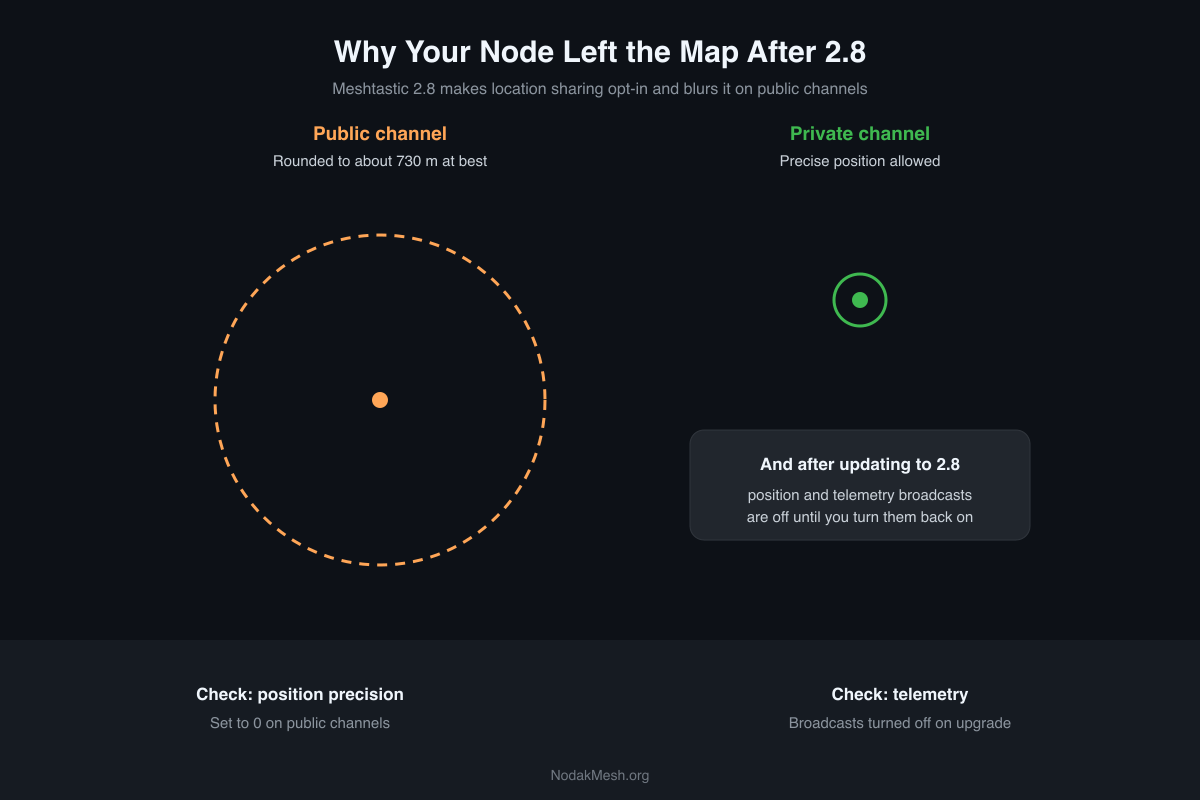
Meshtastic 2.8: Why Your Node Disappeared From the Map
Meshtastic 2.8 turns off position and telemetry sharing on public channels, even on upgrade. Why your node left the map and how to share again.
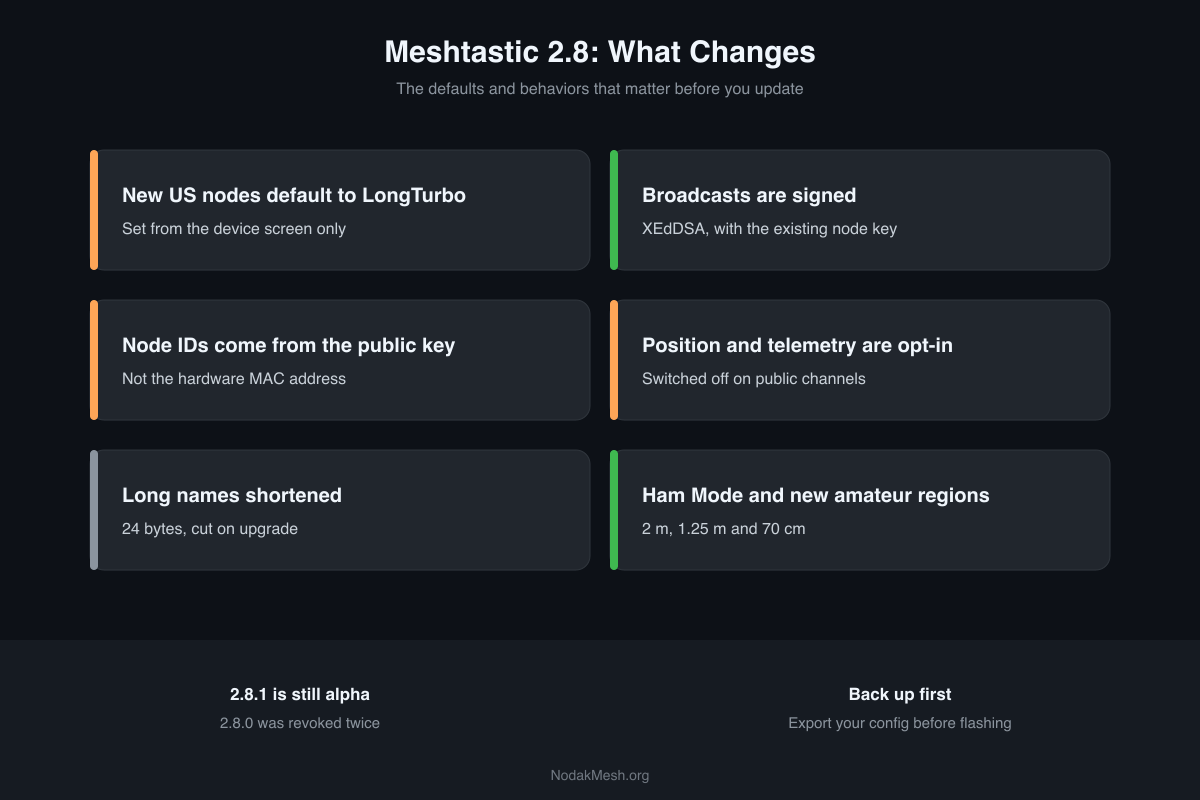
Meshtastic 2.8: What's New and Should You Update?
Meshtastic 2.8 changes US presets, signs broadcasts, gives nodes new IDs and makes position sharing opt-in. What changes, what breaks, and when to update.