Meshtastic Lock Icons and Public Key Mismatch Explained
What the green, yellow and red locks mean in the Meshtastic app, why a node shows Public key mismatch and how to fix it, and the new 2.8 signed badges.
The locks in the Meshtastic app tell you different things depending on where you see them: on a channel, how well its key protects it; on a node, whether your direct messages to it use public-key encryption. And a red key with a line through it, Public key mismatch, means something changed that you should check before you trust that node again.
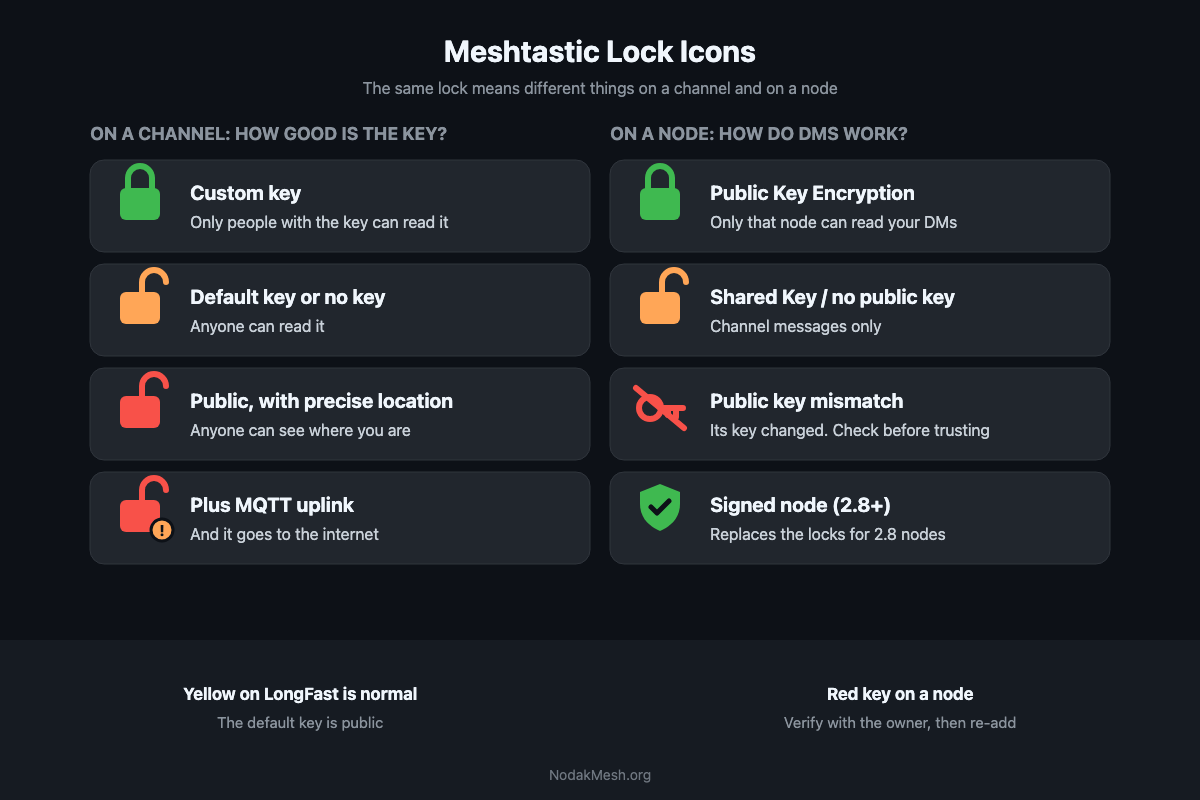
This guide covers every icon in the Android and iPhone apps, what to do about a key mismatch, and what changed with firmware 2.8’s signed and verified badges. We checked each one against the app source code: Meshtastic for Android 2.8.1 and 2.8.3, the iPhone app 2.7.25, and firmware 2.7.26 and 2.8.1.
Channel Locks
You’ll see these next to each channel in the channel list, in the channel’s chat screen, and in channel settings. They’re about the channel key.
| Icon | Means |
|---|---|
| Green, closed | A custom key, 128 or 256 bit. Only people you give the key to can read it. |
| Yellow, open | The default key, or no key. Anyone can read it. |
| Red, open | The default key or no key, and you share a precise location on it. |
| Red, open, with a warning badge | All of that, plus MQTT uplink is on, so it’s also going to the internet. |
Yellow is the one to understand. The default key is published. Every Meshtastic user has it, so the default LongFast channel is a public channel, not an encrypted one in any useful sense. The apps treat “default key” and “no key” the same for that reason.
Red is about your location. Android shows it when the channel shares your position at full precision; the iPhone app shows it for anything precise to about 180 meters or better. Sharing your exact spot on a channel anyone can read is the combination the red lock is warning you about. On firmware 2.8, position sharing on public channels is off by default, which is why your node may have disappeared from the map.
To get a green lock, set up a private channel with its own key. Our channels guide walks through it.
Node and Direct Message Locks
Next to a node in the node list, and at the top of a direct message chat, the lock answers a different question: can your DMs to this node use public-key encryption?
| Icon | Means |
|---|---|
| Green lock (“Public Key Encryption”) | Direct messages are encrypted with this node’s public key. Only that node can read them. |
| Yellow open lock (“Shared Key”) | Your radio has no public key for this node, either because it runs firmware older than 2.5 or because its key hasn’t reached you yet. You can only reach it on channels. |
| Red key with a line through it (“Public key mismatch”) | The node sent a different key from the one your radio already stored for it. |
Since 2.5, Meshtastic encrypts every direct message with the other node’s public key. Since 2.7.15, there’s no fallback: if your radio has no key for a node, it refuses to send the DM instead of sending it under the channel key, and the app shows that the recipient’s key isn’t available.
Public Key Mismatch: What It Means
Every node has a key pair, and your radio remembers the public key it first heard for each node. If a node later announces a different key under the same node number, your firmware keeps the original key and ignores the new one, and the app shows Public key mismatch.
There are two possible reasons, and the app tells you as much:
- The owner changed it. Erasing the firmware, a factory reset or regenerating the keys creates a new key pair. This is by far the most common cause.
- Someone is pretending to be that node. A different radio sending the same node number with its own key.
Upgrading to firmware 2.8 doesn’t cause it. The upgrade keeps the node’s key; what changes is the node number, which 2.8 derives from the key. That shows up as a new node in your list, with the old one left behind as a ghost, rather than as a mismatch.
While the mismatch stands, direct messages to that node go out encrypted to the old key. If the other radio really has a new key, it can’t read them, so your DMs to it fail.
How to Fix It
- Check with the person another way: in person, by phone, on Discord. Ask if they reflashed or reset their node. If they didn’t, don’t accept the new key.
- If the change is legitimate, remove the node from your node list. The next time it sends its node info, your radio stores the new key. To speed that up, ask them to send theirs, or use Request User Info (Android) or Exchange User Info (iPhone) once it reappears.
- Or scan their contact QR code. Importing a shared contact with a new key replaces the stored one. Android shows that the public key changed; on iPhone, turn on the option to replace the stored key.
If your own node’s key is being advertised by another node, the firmware logs a warning that your key may be compromised. In that case, regenerate your keys in the Security settings and ask your contacts to remove and re-add you.
What Changed in 2.8: Signed and Verified Badges
Firmware 2.8 signs broadcasts, so the apps can now say more than “has a key”. From Android 2.8.2, the node list shows:
- Verified contact: you verified this node’s key yourself, by exchanging contact QR codes in person.
- Signed node: the node runs 2.8 or newer and signs its broadcasts, so its identity is consistent over time, but you haven’t verified it in person.
- Public key mismatch: still the red key, on any version.
The old green and yellow locks now only appear for nodes on firmware before 2.8, and in the header of a direct message chat. Signed broadcasts also get a small “Signed · verified” shield in the chat. The iPhone app’s source has the same two badges; depending on when you last updated, your version may still show the locks.
Signing is about who sent a message, not who can read it. A signed broadcast on the default channel is still readable by anyone. Our packet signing explainer covers what it protects, and the 2.8 overview covers the rest of the update.
Ham Mode
In licensed (ham) mode, Meshtastic removes every channel key and turns off public-key encryption, because amateur rules don’t allow messages encrypted to hide their meaning. Channels show the open lock, and that’s expected. On 2.8, ham mode traffic is still signed. More in our Ham Mode guide.
Remote Admin
The same keys protect remote administration. A node only accepts an admin command if it arrives as a public-key-encrypted message from one of the admin keys in its Security settings, up to three. The old admin channel is refused unless you turn it on. If you manage repeaters remotely, keep the admin key list short and leave the admin channel off.
Comments
Related Posts
Meshtastic Not Seeing Other Nodes? How to Fix It
An empty Meshtastic node list or messages that never deliver, fixed in order of likelihood: region, preset, channel, transmit, timing, filters and hops.
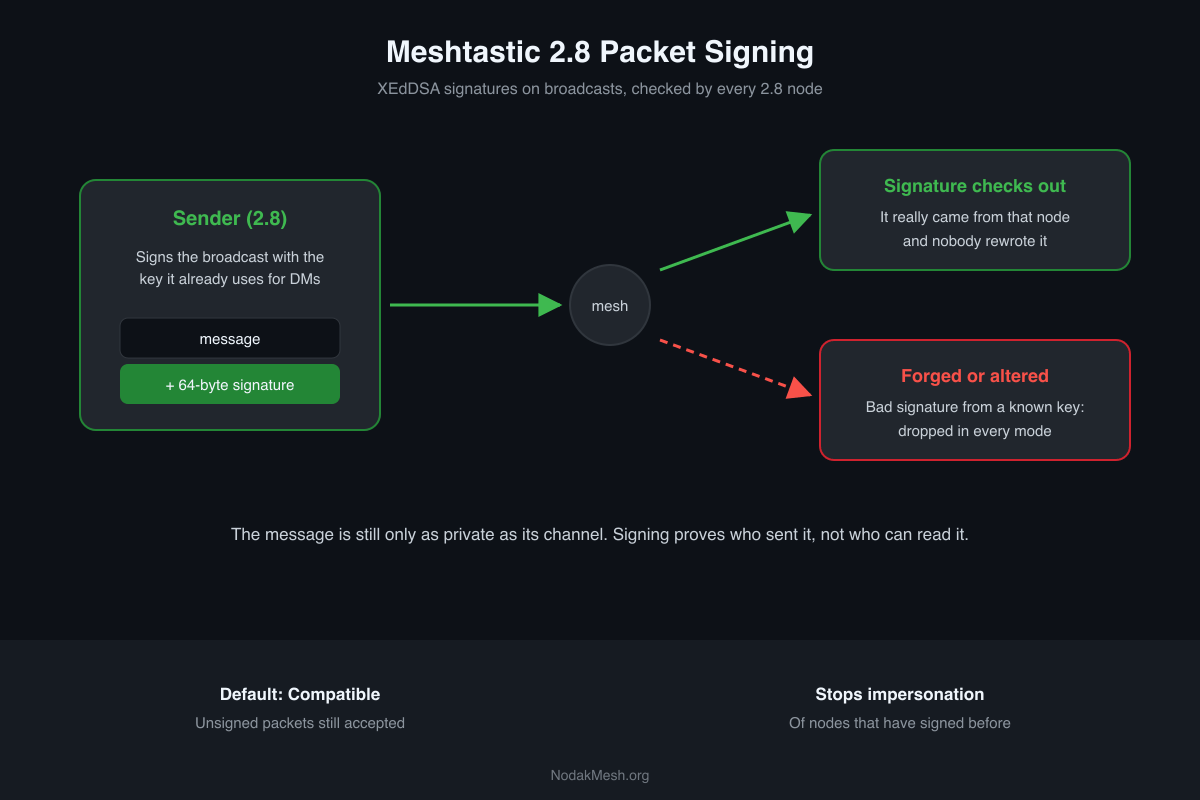
Meshtastic Packet Signing Explained: What 2.8 Protects
Meshtastic 2.8 signs broadcasts with XEdDSA. What a signature proves, what it doesn't, the three receive policies, and why 2.8.0 was pulled.
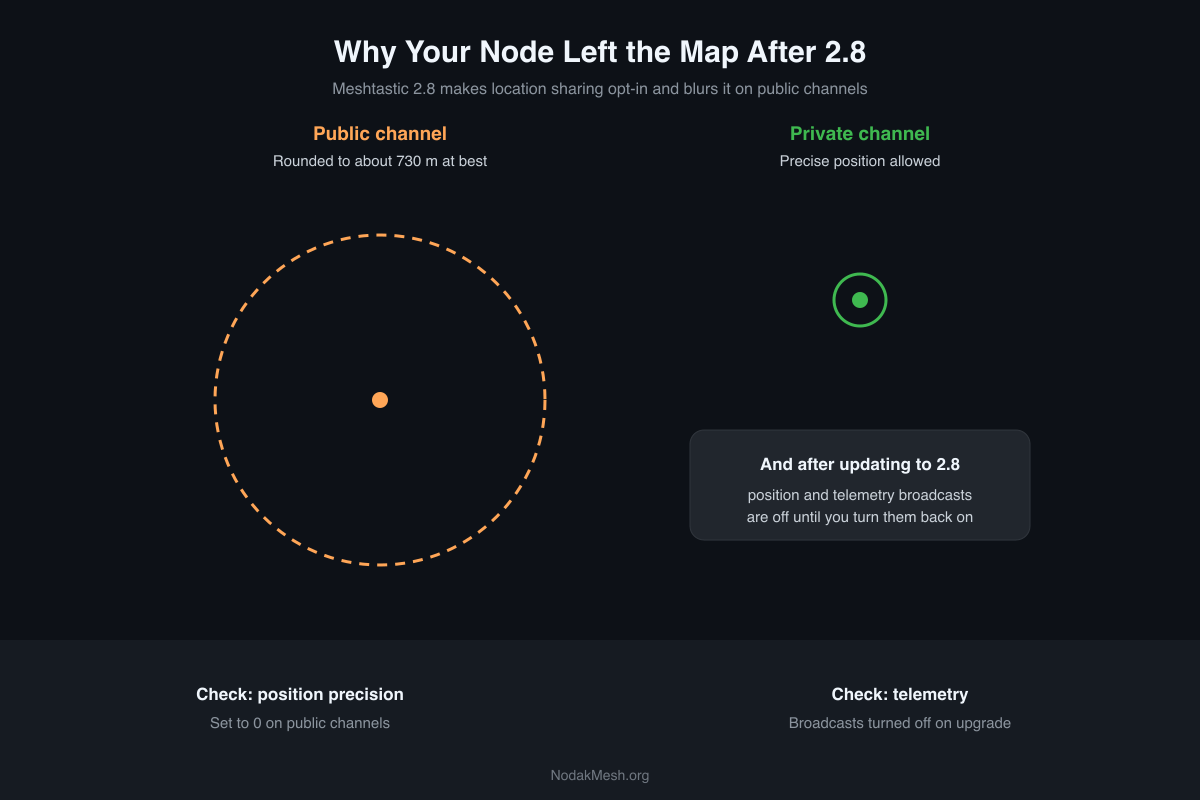
Meshtastic 2.8: Why Your Node Disappeared From the Map
Meshtastic 2.8 turns off position and telemetry sharing on public channels, even on upgrade. Why your node left the map and how to share again.