MeshCore Companion CLI Guide: Commands and Remote CLI
How to use the MeshCore companion CLI added in firmware 1.18: every command, WiFi setup over Bluetooth, and how to grant Remote CLI safely.
On this page
- Companion CLI vs meshcore-cli
- What you need
- Opening the command line
- Every MeshCore companion CLI command in 1.18
- Node basics
- Radio settings
- WiFi (WiFi and BLE+WiFi builds only)
- Board-specific commands
- Setting up WiFi over Bluetooth
- Remote CLI: managing another companion over the mesh
- Be careful who gets this
- For firmware builders
- The rest of 1.18.0
MeshCore v1.18.0 shipped on October 15, and its headline feature is the new Companion CLI. If you’ve managed a repeater from the MeshCore app, you already know how it works: type a short text command, and the node answers. The difference is that it now works on your companion, the radio paired to your phone.
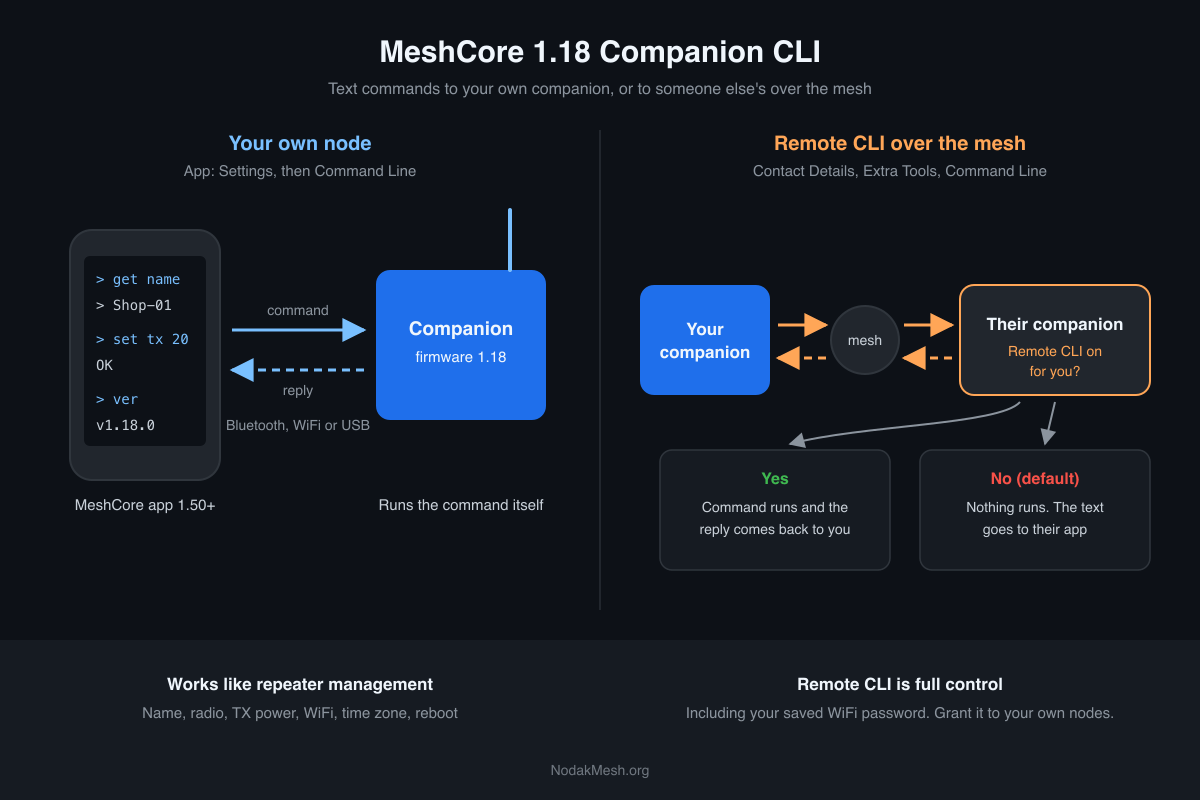
Until now, every new companion setting needed its own command in the companion protocol, plus an app update before you could reach it. That got awkward as hardware makers started shipping boards with features that need their own on and off switches. With the CLI, the firmware adds a command and the app can send it right away. No app update.
This guide covers how to open the CLI, what every command does, and how to use the new Remote CLI permission without handing your node to a stranger. We flashed 1.18.0 onto our Elecrow ThinkNode M1 and ran the commands below on it, so the screenshots are real replies from that node. The M1 has no WiFi and no board-specific commands, so those sections, and Remote CLI, come from the v1.18.0 announcement and the 1.18.0 companion firmware source. Either way, the commands and limits below are the ones the firmware actually accepts.
Companion CLI vs meshcore-cli
Two different tools share almost the same name.
- meshcore-cli is a Python program you run on a computer. It connects to your node over USB, Bluetooth or TCP, and it’s been around for a while. Our MeshCore CLI guide covers it.
- The Companion CLI is new in 1.18. It’s built into the companion firmware, and you reach it from the MeshCore app’s settings. No computer required.
If you’re on your phone and want to change a setting, you want the Companion CLI.
What you need
- Companion firmware v1.18.0 or newer. Flash it from the MeshCore flasher. Our MeshCore firmware guide walks through it if you haven’t flashed before.
- MeshCore app v1.50.0 or newer. That’s the version that added the Command Line screen.
Opening the command line
Connect to your companion in the app, open Settings, and scroll down to Extra Tools. Command Line sits between Debug Logs and Factory Reset. Give Factory Reset a wide berth while you’re down there.
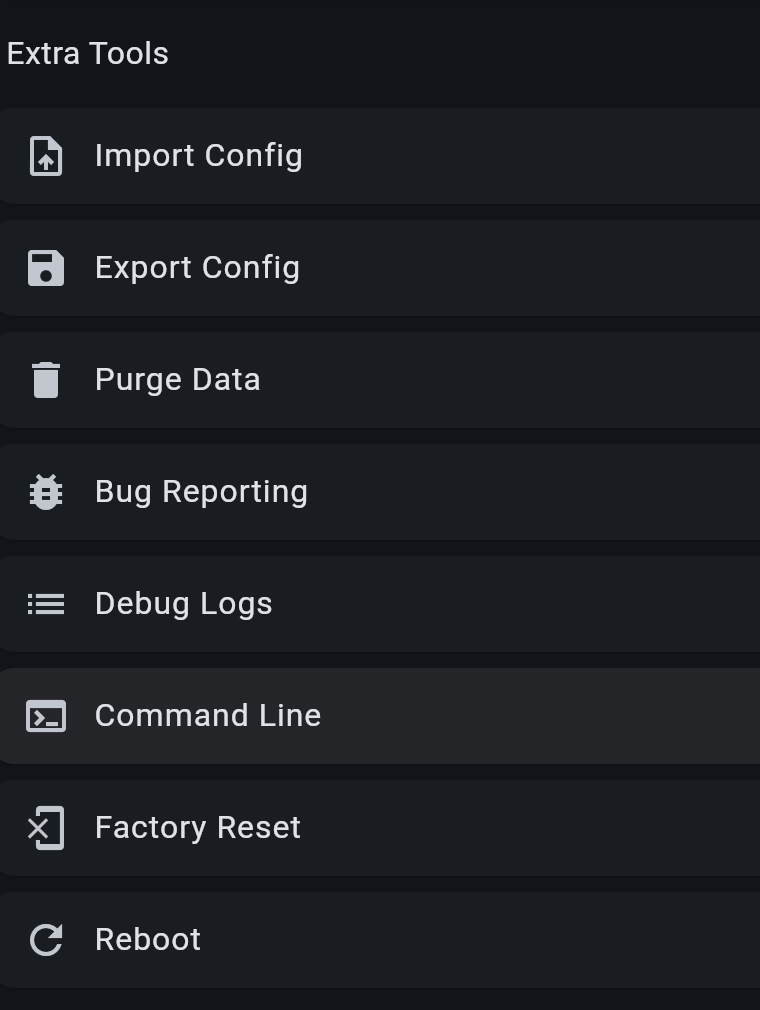
The screen’s header shows which node you’re talking to. Anything you type goes to that radio. Start with four harmless commands to make sure it’s working:
ver
board
get radio
get name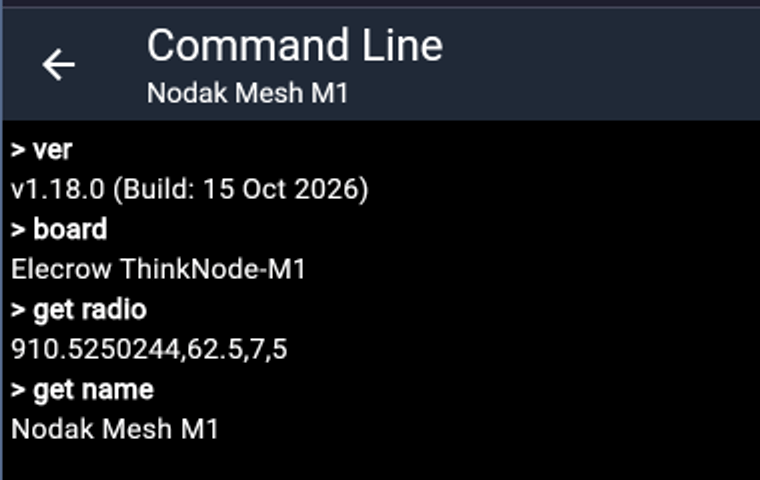
ver shows the firmware version and build date. board shows the board name. get radio returns frequency, bandwidth, spreading factor and coding rate, in that order. The long decimal on the frequency (910.5250244) is just how the number prints. It means 910.525 MHz. Those four values should match your local mesh. Here in North Dakota that’s 910.525 MHz, 62.5 kHz, SF7 and coding rate 5. Our MeshCore getting started guide has the full setup.
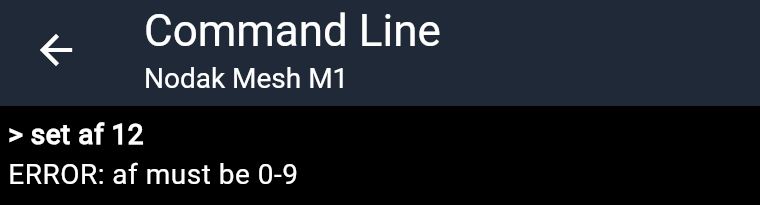
The app shows each command in bold with the reply under it. Set commands answer OK or a short confirmation, and a bad value gets an error, usually with the allowed range:
Every MeshCore companion CLI command in 1.18
Node basics
| Command | What it does |
|---|---|
ver | Firmware version and build date |
board | Board name |
get name / set name <name> | Read or change your node name |
set pin <6 digits> | Change the Bluetooth pairing PIN |
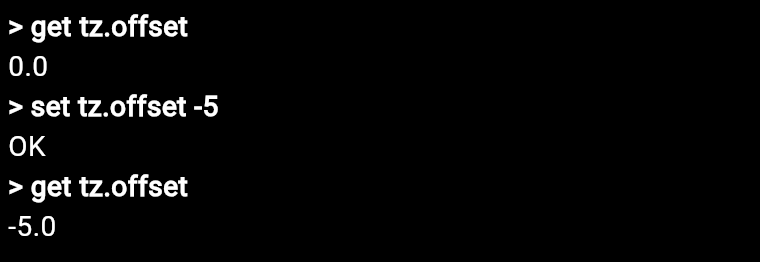
get tz.offset / set tz.offset <hours> | Clock offset for the device screen, -12 to +14 |
reboot | Restart the node |
poweroff or shutdown | Turn the node off |
A few details from the source that aren’t obvious:
- The time zone offset is whole hours only, and it’s a fixed number. The app displays it with a decimal (
-5.0), but the firmware stores a whole number. It won’t follow daylight saving on its own. US Central time is-5during daylight saving and-6in winter, so you’d change it in November and again in March. It only affects the clock on companions with a screen.
- A new PIN takes effect on the next boot. Write it down before you reboot, or you’ll be guessing when you pair again.
poweroffreally means off. Nothing can turn the node back on over the mesh, so don’t send it to a node nobody can reach.
Radio settings
These are the same radio commands repeater owners already use.
| Command | What it does |
|---|---|
get radio / set radio <freq>,<bw>,<sf>,<cr> | All four LoRa settings at once (reboot to apply) |
get freq | Frequency only |
get tx / set tx <dBm> | Transmit power, applied right away |
get af / set af <0-9> | Airtime factor |
get dutycycle / set dutycycle <1-100> | Duty cycle limit, in percent |
get txdelay / set txdelay <0-2> | Flood transmit delay |
get direct.txdelay / set direct.txdelay <0-2> | Direct transmit delay |
get rxdelay / set rxdelay <0-20> | Receive delay base (0 turns it off) |
get cad / set cad on|off | Hardware channel activity detection |
get radio.rxgain / set radio.rxgain on|off | Boosted receive gain, on radios that support it |
get int.thresh / set int.thresh <n> | Interference threshold |
get agc.reset.interval / set agc.reset.interval <secs> | How often the radio’s automatic gain control resets |
get path.hash.mode / set path.hash.mode <0-2> | Path hash size (our path hash explainer covers when to change it) |
get multi.acks / set multi.acks <n> | Extra copies of each ACK the node sends |
Here’s what our M1 reports for the read-only side of that table:
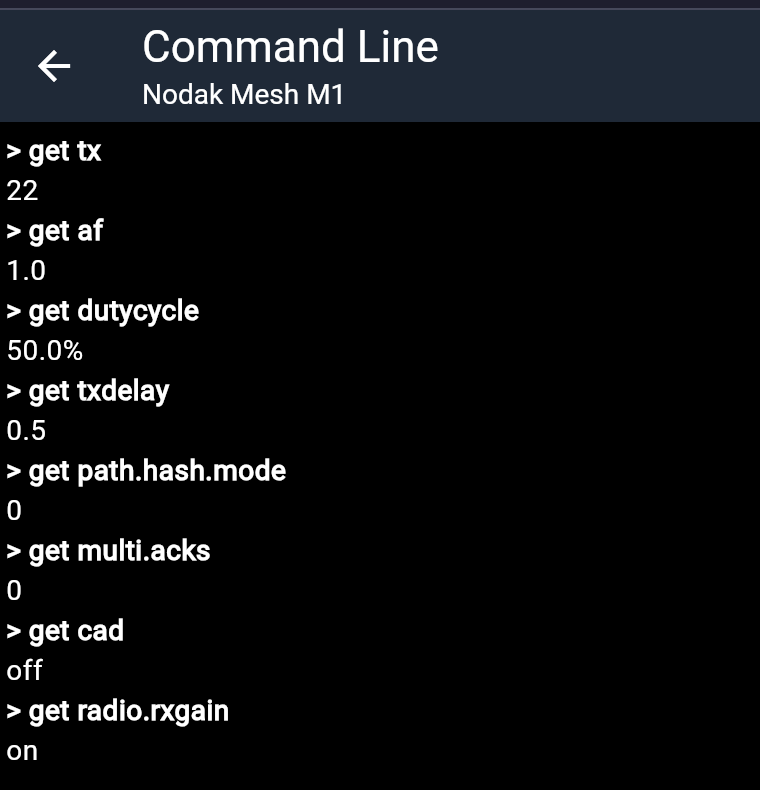
set radio checks its inputs: frequency 150 to 2500 MHz, bandwidth 7 to 500 kHz, spreading factor 5 to 12, coding rate 5 to 8. It doesn’t check whether those values match the mesh around you. Change them and reboot, and your node can’t hear anyone until you change them back. If you just want to look, stick to get.
WiFi (WiFi and BLE+WiFi builds only)
| Command | What it does |
|---|---|
set wifi.ssid <name> | Network to join |
set wifi.pwd <password> | WiFi password |
get wifi.ssid / get wifi.pwd | Read back what’s saved |
set wifi.enabled 0|1 / get wifi.enabled | Turn WiFi off or on |
set wifi.clear | Erase the saved WiFi network and password |
get wifi.status | connected or disconnected |
get wifi.ip | The node’s IP address when connected |
The set commands need a reboot before they take effect. On Bluetooth-only and USB-only builds the WiFi commands aren’t compiled in, so they answer Unknown command.
Board-specific commands
Boards can now register their own commands, and seven already do: the Heltec V4, V4 R8, T096 and Tracker V2, the LilyGO T-Beam 1W, the Seeed Wio Tracker L1 1W and the Station G3. On the Heltec V4, for example, get radio.fem.rxgain and set radio.fem.rxgain on|off switch the receive amplifier in the radio’s front end. If you get Unknown command, check the spelling first, then whether that command exists for your board.
Setting up WiFi over Bluetooth
Version 1.18 ships BLE+WiFi companion builds for the Heltec V3, V4, V4 R8 and Wireless Paper, the RAK3112, and the Xiao S3 and Xiao S3 WIO. Before this, moving one of these from Bluetooth to WiFi meant flashing different firmware. Now you connect over Bluetooth and type:
set wifi.ssid FarmShop
set wifi.pwd yourpasswordhere
reboot
Reconnect over Bluetooth after it restarts and check that it joined:
get wifi.status
get wifi.ip
That IP is the address you’d give a WiFi companion app, or meshcore-cli over TCP. The MeshCore app also has a new WiFi Settings screen that does the same job with buttons. The CLI route helps when you’re using a different companion app, or want to confirm what’s saved.
Remote CLI: managing another companion over the mesh
The other half of this release is remote management. You can now send CLI commands to someone else’s companion over the mesh, if they let you.
To allow it, give that contact the new Remote CLI permission in the app. Every contact starts with it off.
To use it, open the other node’s contact, go to Contact Details, then Extra Tools, then Command Line. You only get an answer if that node has given you Remote CLI permission. If it hasn’t, the firmware doesn’t run your command. It passes the text to the owner’s app instead.
Replies travel back over the mesh like any other message, so expect the same delay you’d see messaging that node.
Be careful who gets this
The MeshCore team calls this a very sensitive permission, and the command list above shows why. Anyone you give Remote CLI can:
- change your radio settings and knock your node off the mesh
- rename your node or change its Bluetooth PIN
- reboot it or power it off
- read your saved WiFi password with
get wifi.pwd
That last one surprised us. If your companion has your home WiFi saved, Remote CLI includes that password.
Our rule: give Remote CLI only to your own nodes. Good uses are a second companion you leave at the cabin or the shop, a WiFi node sitting on a shelf at home, or a node you set up for a family member and look after for them. If a friend asks for help with their settings, have them grant it, make the change, and have them turn it back off.
For firmware builders
Custom firmware can add commands through handleCommand() on the MainBoard class. They show up in the app’s command line with no app changes and no new protocol command ID. That’s the problem the CLI was built to solve. If you maintain a fork, it’s now the easiest way to expose your own settings.
The rest of 1.18.0
Other changes worth knowing about:
- Repeater discovery on the device. Companions with a screen get a Discover page that finds nearby repeaters.
- Telemetry push. A permitted companion can subscribe to a sensor node, and the sensor pushes readings when they change by a set amount, instead of waiting to be asked.
- RAK12500 and RAK12501 GPS now work on the RAK3401.
- Hidden repeaters. A repeater with adverts turned off no longer shows up in discovery.
- Faster channel sync on companions.
- New boards: ThinkNode M4 and M8, Wio Tracker L1 1W, Muzi Base boards, and the Waveshare ESP32-S3 LR1121.
- Low-voltage boot lockout is now off on most nRF52 boards.
The official announcement has the full changelog. If you’re new to the companion CLI, start with ver and the get commands, and leave Remote CLI off until you need it.
We’ll add Remote CLI results once we’ve run it between two of our own companions. Running 1.18 on yours? Tell us how it’s going in the NodakMesh Discord.
Comments
Related Posts
FCC Part 15.247: The 500 kHz Minimum and LoRa Mesh
Part 15.247 sets a 500 kHz minimum 6 dB bandwidth for digital modulation at 900 MHz. What the rule says, and where Meshtastic and MeshCore presets land.
Seeed MeshCore Starter Kit: Solar Repeater + Client Bundle
Seeed's MeshCore Starter Kit bundles a solar repeater and Wio Tracker L1 Pro into one off-grid mesh. Antenna picks, setup tips, and who it's for.

MeshCore Path Hash Modes Explained: 1, 2, and 3 Byte
How MeshCore's 1, 2, and 3 byte path hashes work, why 1-byte collides at scale, and when to switch. Guide to path.hash.mode for growing meshes.