MeshCore App Guide: Setup, Contacts, Channels and Repeaters
How to use the official MeshCore app: pairing, radio presets, adverts, contacts, channels, direct messages, repeater login, backups and common fixes.
The MeshCore app is how you talk to a MeshCore companion node: it pairs with the radio, sets its frequency, shows who’s on the mesh, and sends your messages. It’s free, it runs on almost everything, and most of what confuses new users comes down to a handful of settings. This guide walks through each part of the app in the order you’ll need it.
It covers the official app by Liam Cottle, version 1.50.0 (September 2026), with companion firmware 1.18.0. Facts here come from the MeshCore FAQ, the app’s own changelog, and the MeshCore protocol docs.
Where to Get It
The app is free on Android and iPhone and iPad. There are also builds for macOS, Windows and Linux, and a web version at app.meshcore.nz that runs in Chrome or Edge.
There’s one paid item, Remote Management ($7.99 on Android and iOS). It removes the waiting timer when you manage a repeater or room server over the radio. Everything else, including messaging, channels and the map, is free. The desktop builds come fully unlocked.
The official app is closed source. If you’d rather use an open-source app, MeshCore Open is a separate community project that works with the same radios.
Before You Connect: The Right Firmware
The app only talks to companion firmware. Repeater and room server firmware don’t accept a phone connection over Bluetooth; you manage those through a companion, covered below.
Companion firmware comes in versions for each connection type, so flash the one that matches how you’ll connect:
- Bluetooth (BLE) companion for a phone or tablet
- USB companion for a computer or the web app over a cable
- Wi-Fi companion on boards that support it
Our MeshCore firmware guide covers flashing, and the release tracker shows the current version.
Connecting to Your Node
The connect screen has tabs for BLE, USB and Wi-Fi. For Bluetooth:
- Power on the node and open the app.
- Pick your node from the BLE list.
- Enter the PIN when your phone asks.
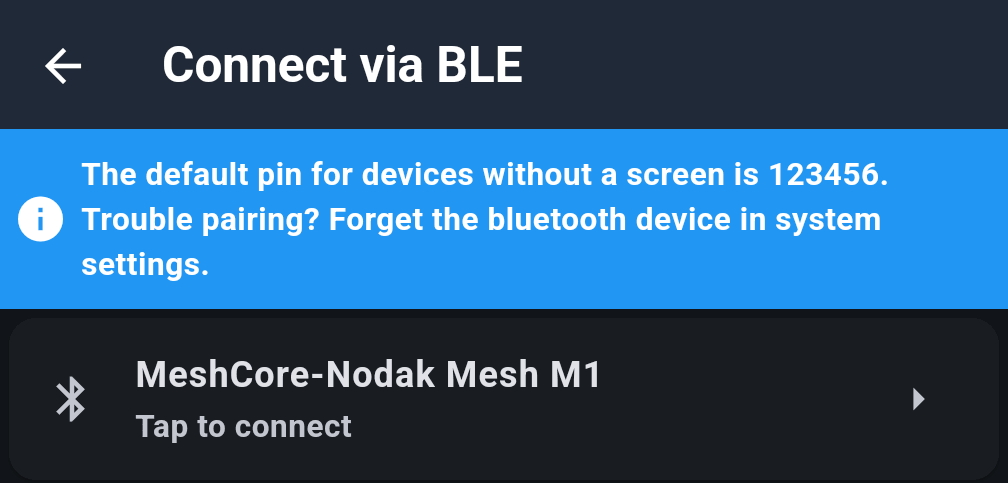
For nodes without a screen, the default PIN is 123456, and the app says so at the top of the connect screen. Nodes with a screen show a random PIN on the display instead, as long as you haven’t set your own. You can set a custom PIN in the app’s settings.
If pairing fails:
- Check the firmware. A node running USB companion firmware won’t show up over Bluetooth.
- Forget the old pairing. Remove the node in your phone’s Bluetooth settings, then connect again from the app and re-enter the PIN. This fixes most problems after reflashing.
- Move closer. Some boards, like the Heltec V3, have a small onboard Bluetooth antenna that only reaches a few feet.
For Wi-Fi companions, the app connects over TCP on port 5000. Firmware 1.18 added builds for some boards, including the Heltec V3 and V4, that run Bluetooth and Wi-Fi together, and app 1.50 has a Wi-Fi Settings screen to set them up.
First Setup: Name and Radio Preset
The first time you connect, the app walks you through a short setup: a welcome screen, your name, your radio settings, and done.
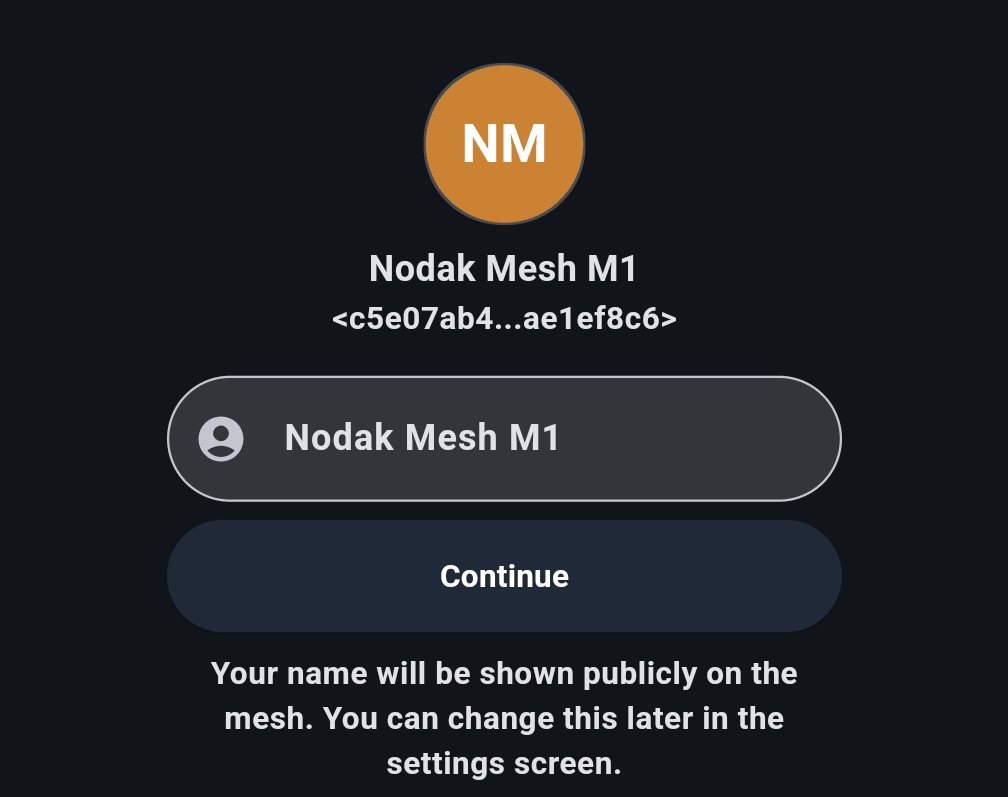
Your name is public: everyone on the mesh sees it, so don’t use your full name or address. You can change it later in settings.
Pick the preset for your region. In setup, the US option is labeled Canada, USA. Tap the box to see the full list, which shows each preset’s numbers. The app downloads this list from MeshCore’s server, so it stays current without an app update.
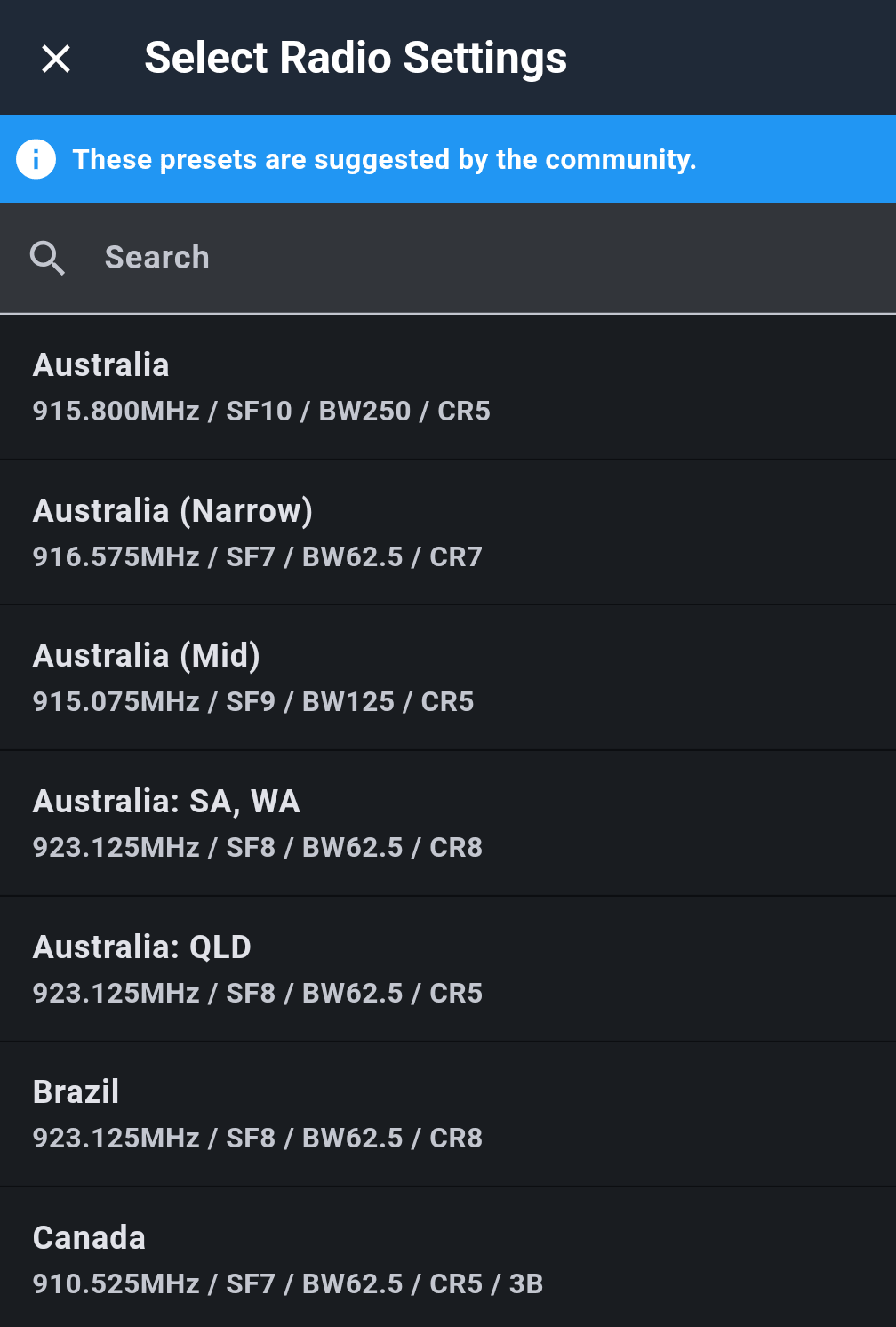
Two that matter most:
| Region | Preset | Settings |
|---|---|---|
| United States and Canada | Canada, USA | 910.525 MHz, 62.5 kHz, SF7, CR5 |
| Most of Europe and the UK | EU/UK (Narrow) | 869.618 MHz, 62.5 kHz, SF8, CR8 |
Presets are suggestions, and Show Advanced Settings lets you enter the values by hand. Your node will only hear nodes using the same frequency, bandwidth and spreading factor, so if a local mesh uses something different, match it. Switching to a preset also sets that preset’s path hash size, which matters later.
In Europe, our getting started guide has the country presets and duty cycle rules.
Adverts: How Other Nodes Find You
MeshCore nodes don’t announce themselves constantly. They send an advert, a small packet with their name and public key, and other nodes add them from it. There are two kinds:
- Zero hop: only nodes that hear you directly get it.
- Flood: repeaters pass it along across the mesh.
Tap the signal icon at the top of the screen to open the advert menu:
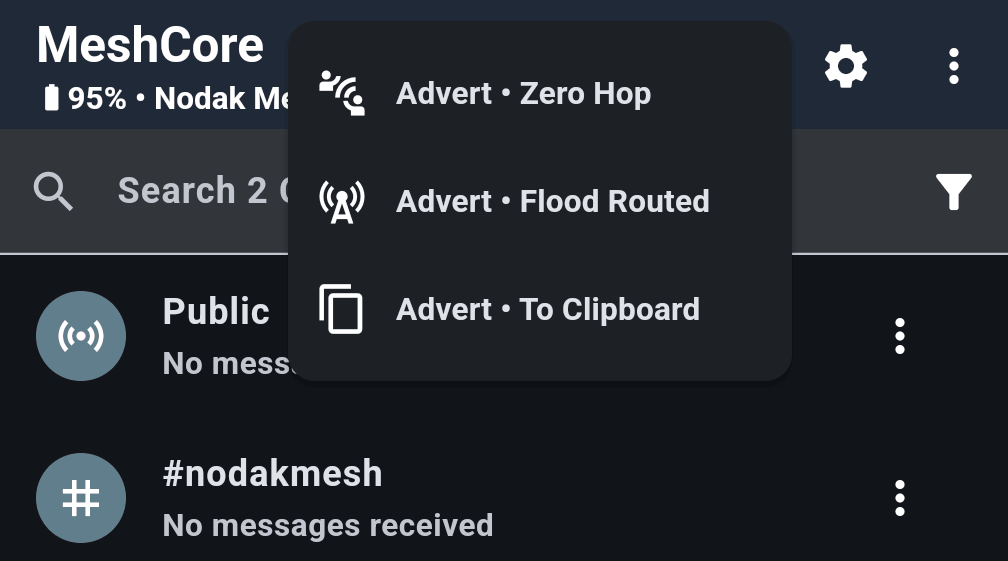
- Advert • Zero Hop reaches nodes in direct range.
- Advert • Flood Routed goes across the mesh through repeaters.
- Advert • To Clipboard copies your advert so you can paste it to someone directly.
After a fresh setup, send a flood advert so the mesh learns about you.
Adverts can include your location, which is what puts you on the Map tab in other people’s apps when their node hears you. Location sharing is a setting you can turn on or off. Leave it off if you don’t want your position shared. (The online MeshCore map is separate: it shows repeaters and room servers that someone has uploaded, and the app opens it from Internet Map in the menu.)
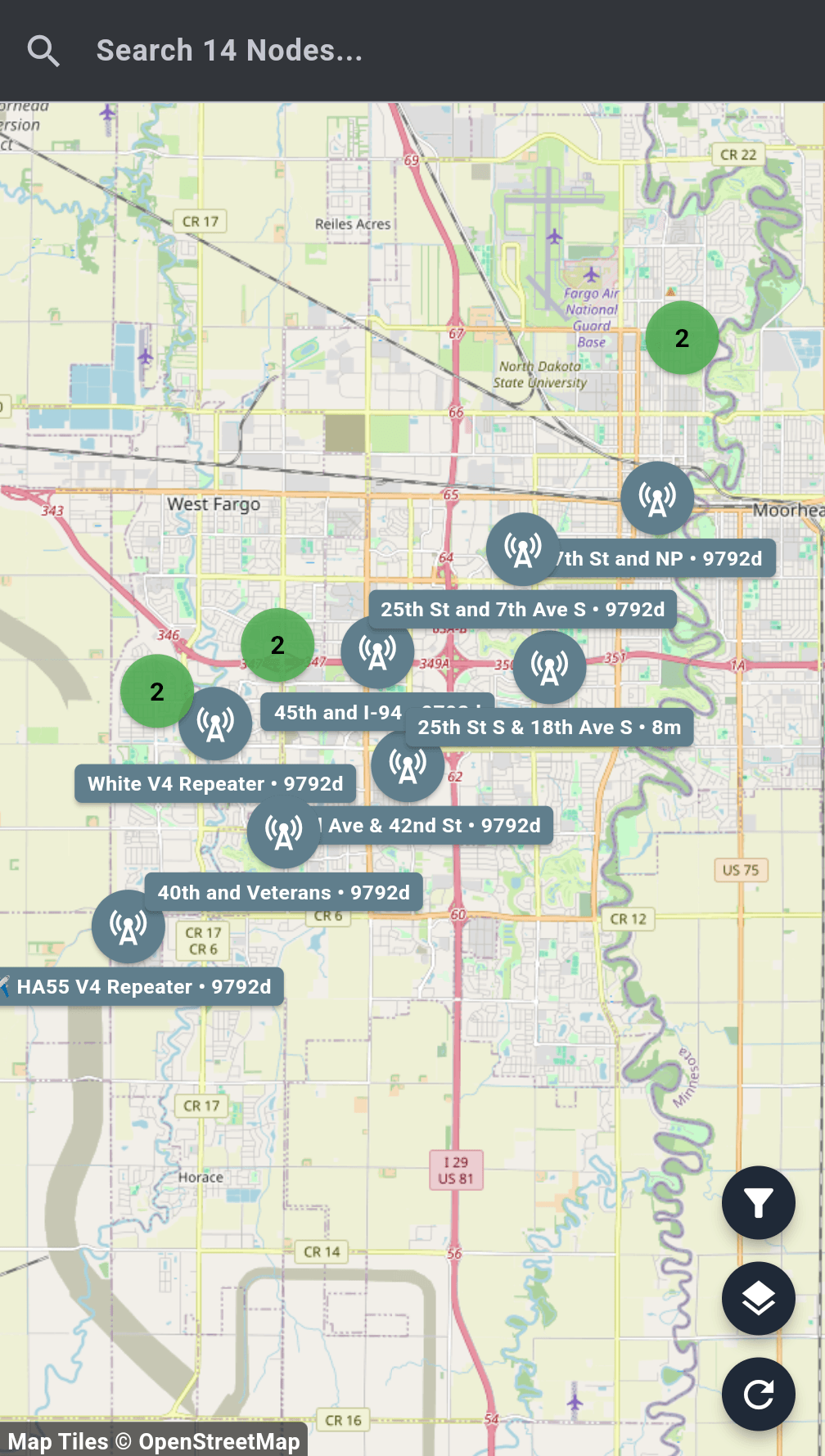
The Map tab plots every contact your node has heard with a location. An age like “9792d” means that repeater’s clock was never set, so its adverts carry a date around January 2000.
Contacts
The main screens are Contacts, Channels and Map, along the bottom. Settings are under the gear icon, and the ⋮ menu holds the rest:
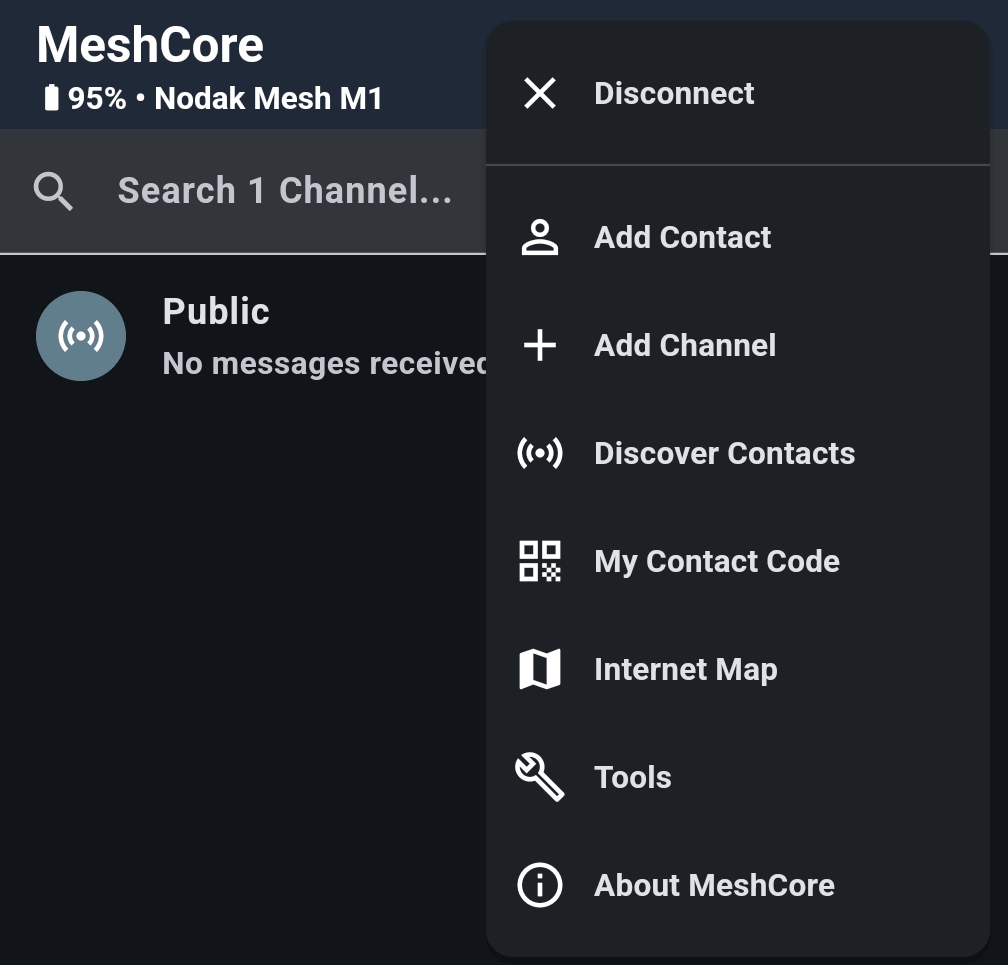
Every node you’ve heard an advert from can become a contact. Each contact is one of four types: companion, repeater, room server or sensor, and repeaters show a tower icon. Each row shows when its last advert was heard and whether it came by flood. Discover Contacts in the menu lists recent adverts so you can add nodes by hand.
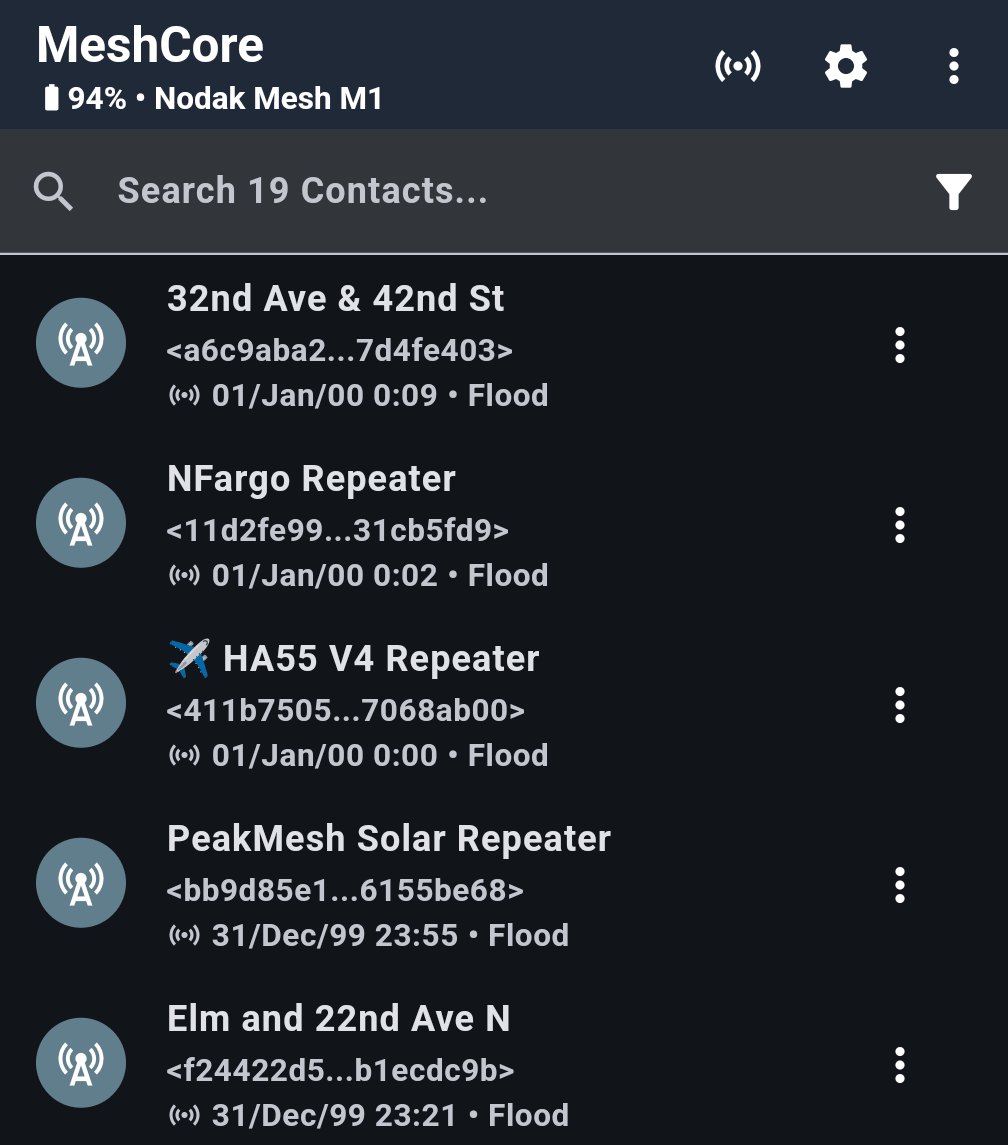
By default the app can add contacts automatically as adverts come in. In settings you can choose which types it adds and limit it to nodes within a set number of hops, which keeps a busy mesh from filling your list with distant repeaters.
That matters because the contact list has a limit, and a full list can stop new nodes from reaching you. The app now warns you when it’s full. To clean up, long-press in the contacts list to select and delete several at once. When you purge contacts, you can keep your favorites.
To share a contact, use its share option to send a link or show a QR code. Your own code is under My Contact Code in the menu. The other person scans it, or opens the link, and your node is added without waiting for an advert.
Channels
Channels are group chats. There are three kinds, and the difference matters for privacy:
- Public: the default channel everyone has. Its key is fixed and published, so anyone can read it.
- Hashtag channels (like
#nodakmesh): the key is made from the channel name. Anyone who knows the name can join and read it, so they’re for communities, not secrets. - Private channels: use a random secret key, shown with a lock icon. Only people you give the key or QR code to can read them.
To join a hashtag channel, choose Add Channel in the menu and type its name:
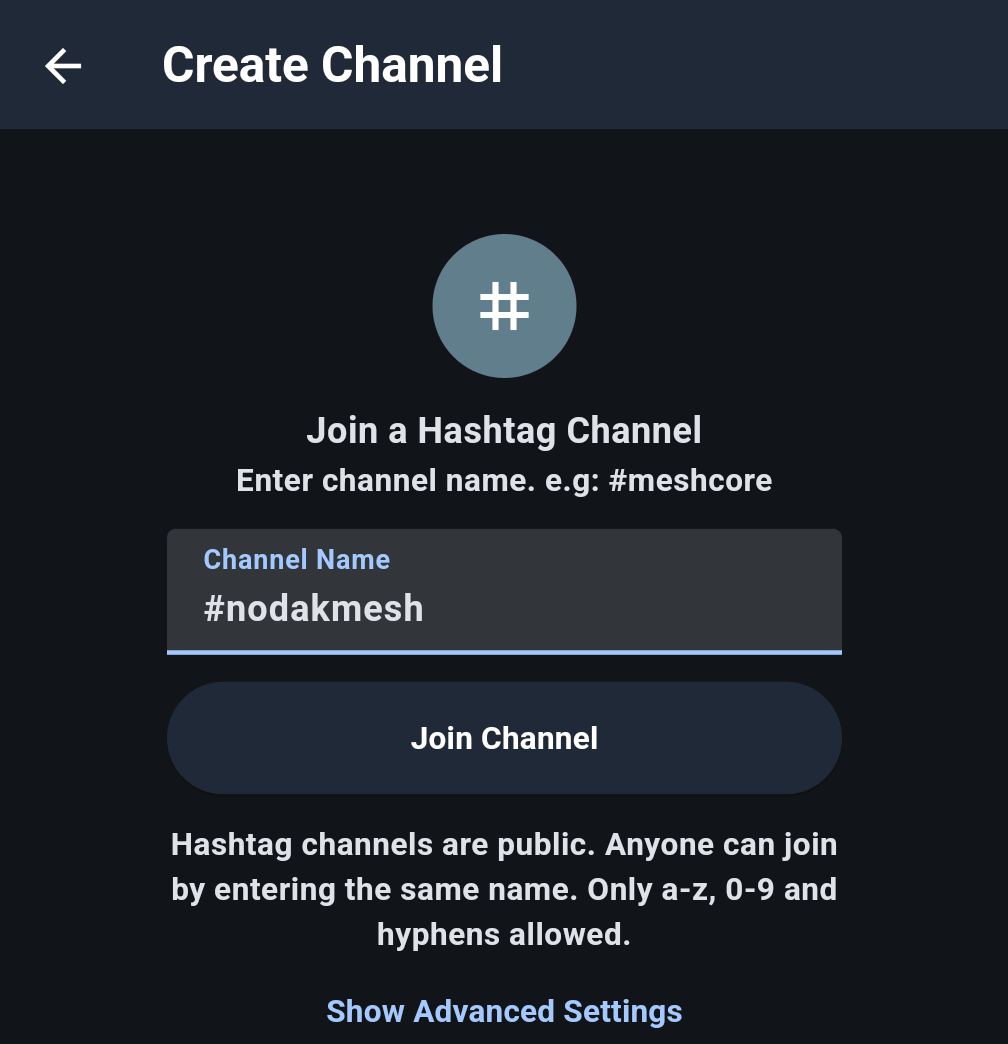
The app reminds you that hashtag channels are public. Channel names can use a to z, 0 to 9 and hyphens.
Every channel also has a share screen with a QR code and its secret key. For a hashtag channel that’s harmless, since the key comes from the name anyway. For a private channel, that screen is the secret: only show it to people you want in the channel.
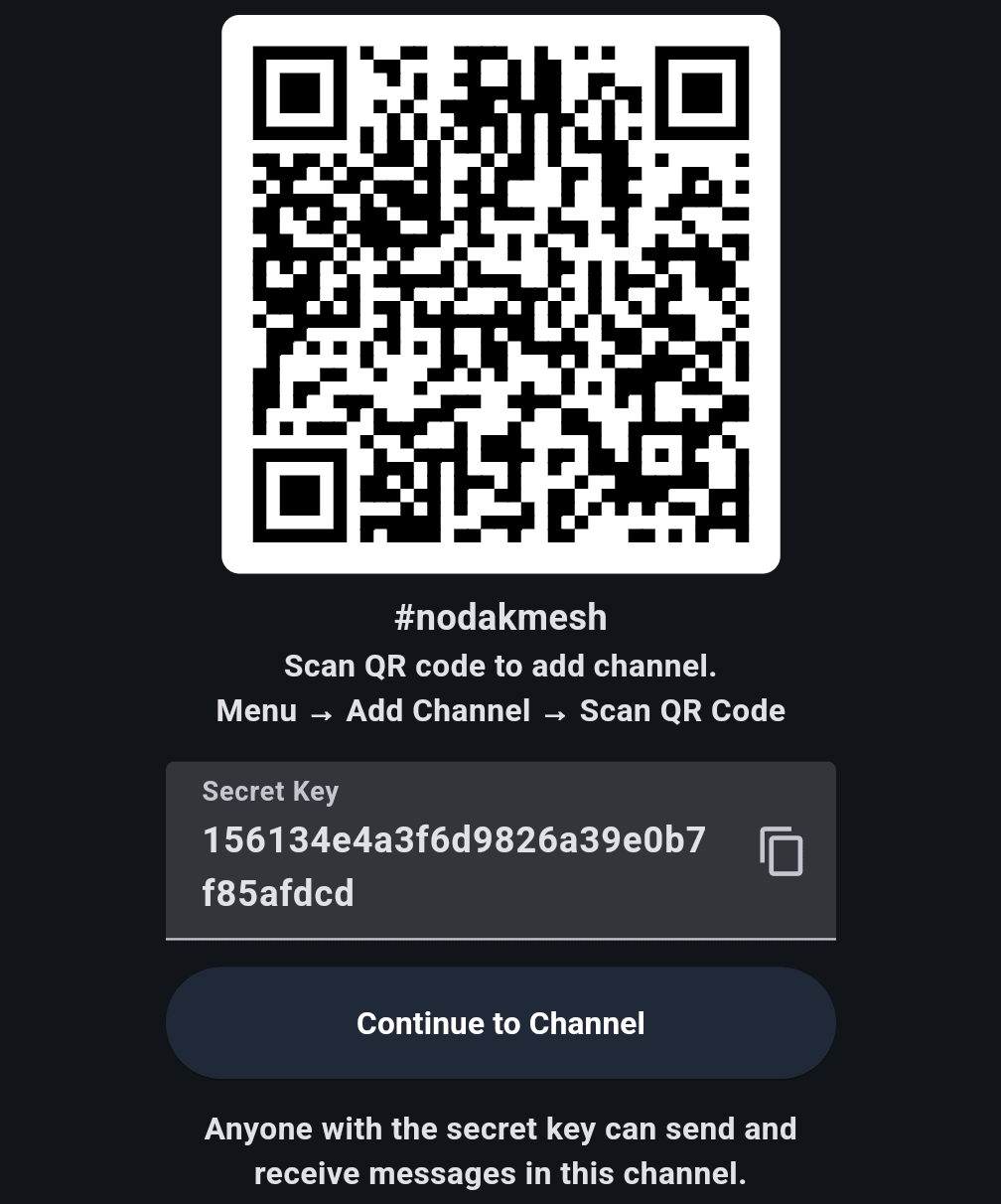
You can join a channel by scanning its QR code, even with your phone’s normal camera app.
Every channel message floods the mesh, so it goes out through every repeater in range. The app shows how many repeats it heard for each message you send. If it heard none, there’s a button to resend.
Direct Messages
Direct messages are end-to-end encrypted between you and the other node. They’re also smarter about routing than channel messages:
- The first message to a contact floods the mesh to find them.
- The delivery report comes back with the path it took.
- Later messages go direct along that path, which uses far less airtime.
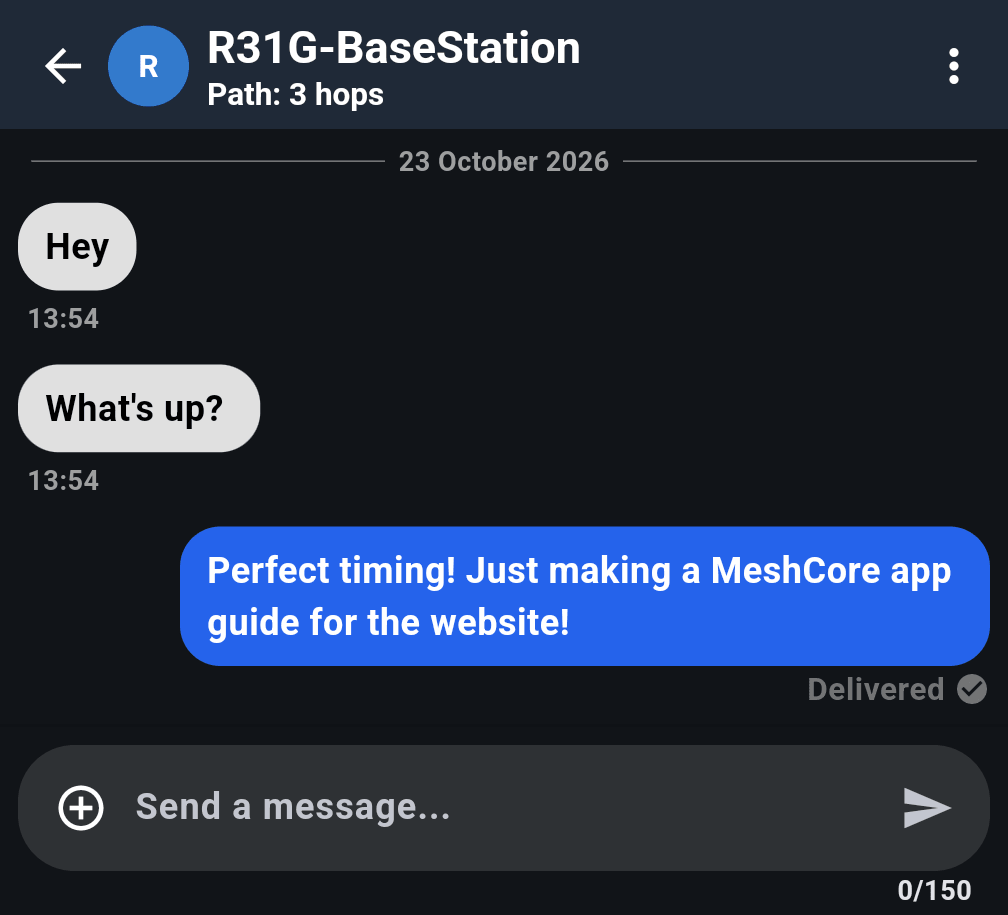
The chat header shows how many hops away the contact is, and a sent message is marked Delivered once the other node confirms it. The message box counts characters as you type, up to 150.
If a path stops working, the app retries along it, then falls back to flooding on the last attempt. That fallback is on by default and can be turned off. To choose for yourself, long-press Send to pick direct or flood for one message.
If messages to someone keep failing, reset the path from the contact’s settings so the next message floods and finds a fresh route.
Managing Repeaters and Room Servers
You manage repeaters and room servers from the app through your companion, over the radio. Open the repeater or room server contact and log in:
- Admin login gives full control. The default admin password is
password, so change it on any node you put up. - Room server guest login lets members read and post. The default guest password is
hello.
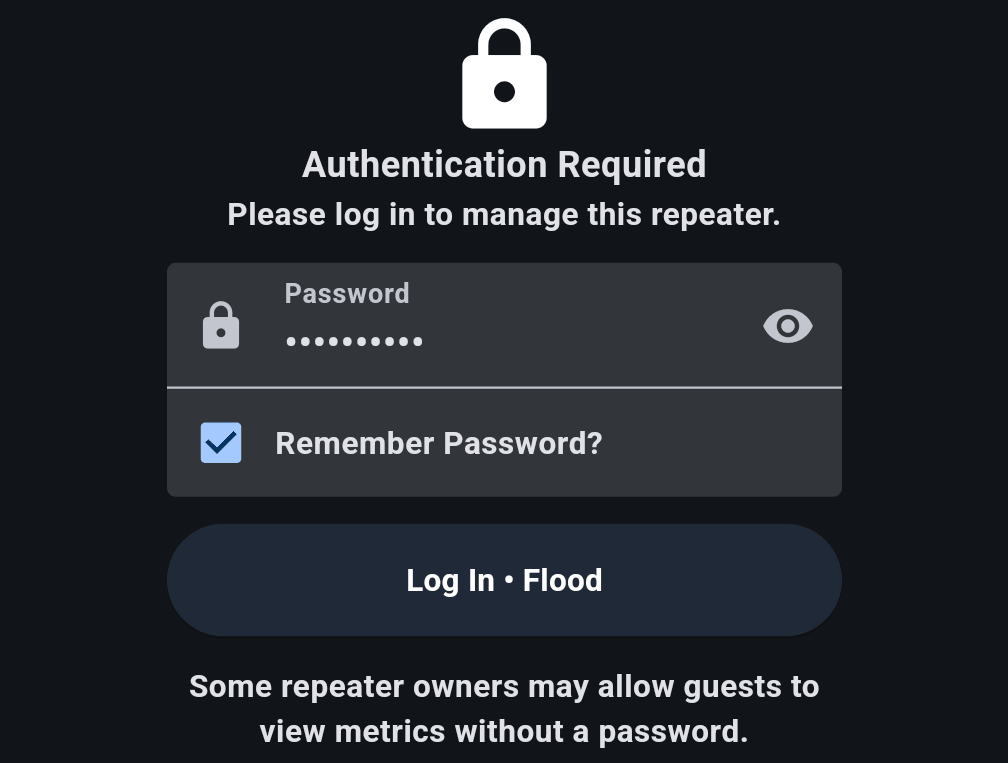
The login button shows how it will reach the repeater, like Log In • Flood. Long-press it to switch between flood and direct, which helps for a node several hops away. Passwords can be up to 15 characters, and the app can remember them.
Once you’re logged in, remote management has three tabs: Status, Command Line and Settings.
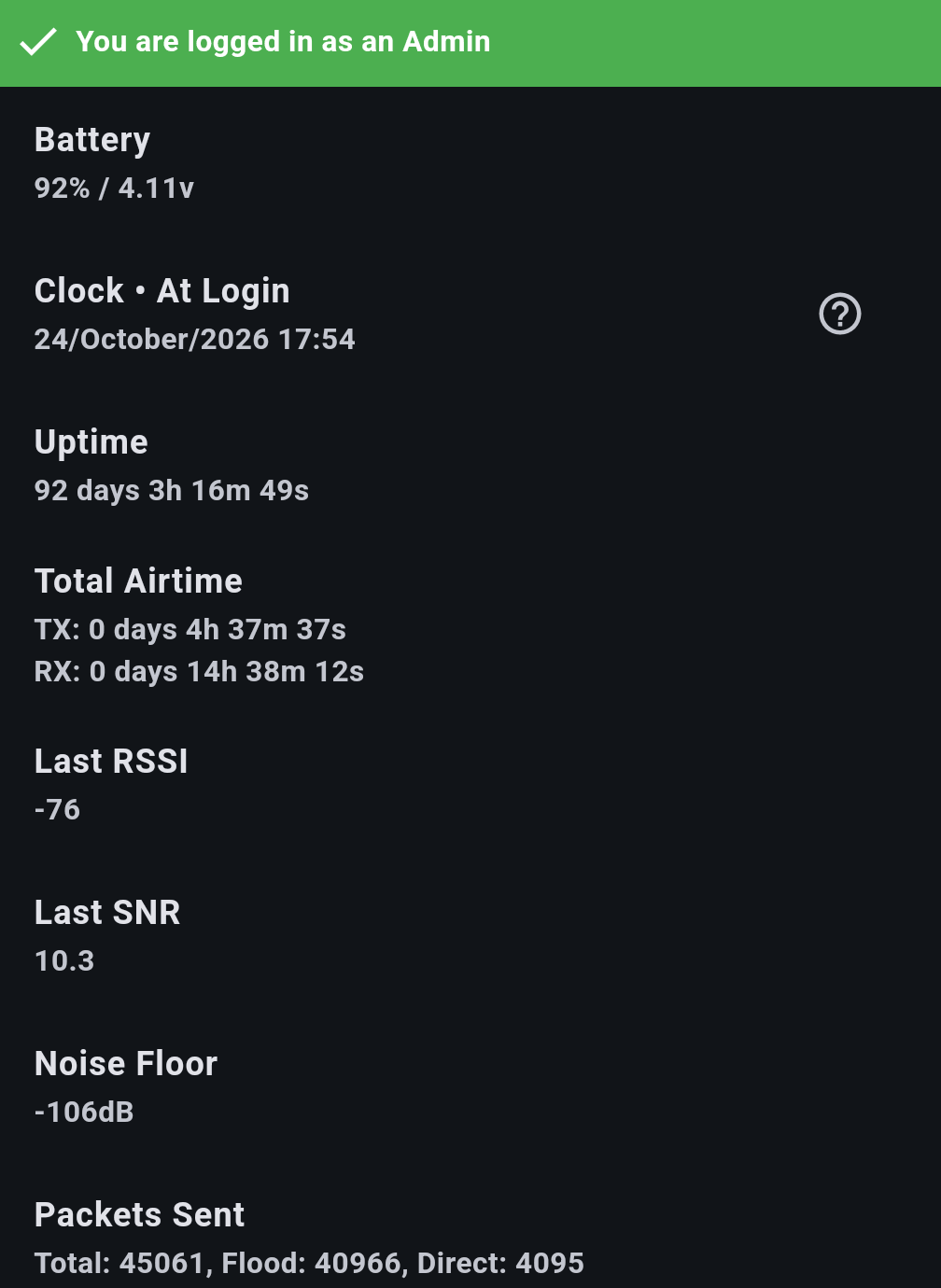
Status is the health check: battery, the repeater’s clock, uptime, airtime, the signal of the last packet heard, the noise floor and packet counts. Command Line runs the same commands as over USB. Settings covers the rest:
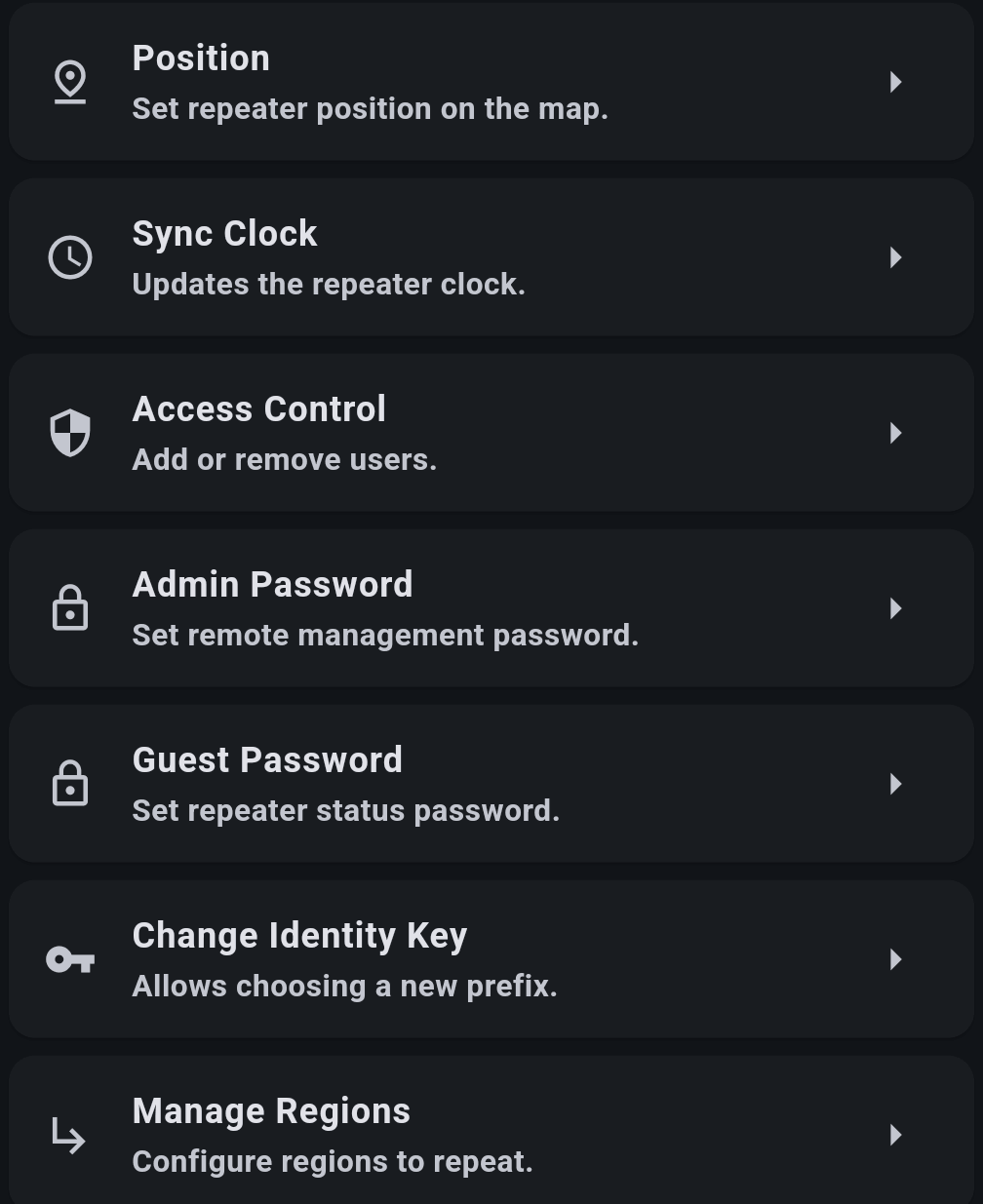
- Position sets where the repeater appears on maps.
- Sync Clock sets the repeater’s clock from your phone. Do this on any repeater whose adverts show a strange date.
- Advert and Advert Intervals send an advert now or change how often it sends them.
- Admin Password and Guest Password set who can log in, and Access Control manages individual users.
- Manage Regions sets which regions the repeater forwards.
A repeater can also show its neighbours: the repeaters it hears directly, on a map, with the signal of each link.
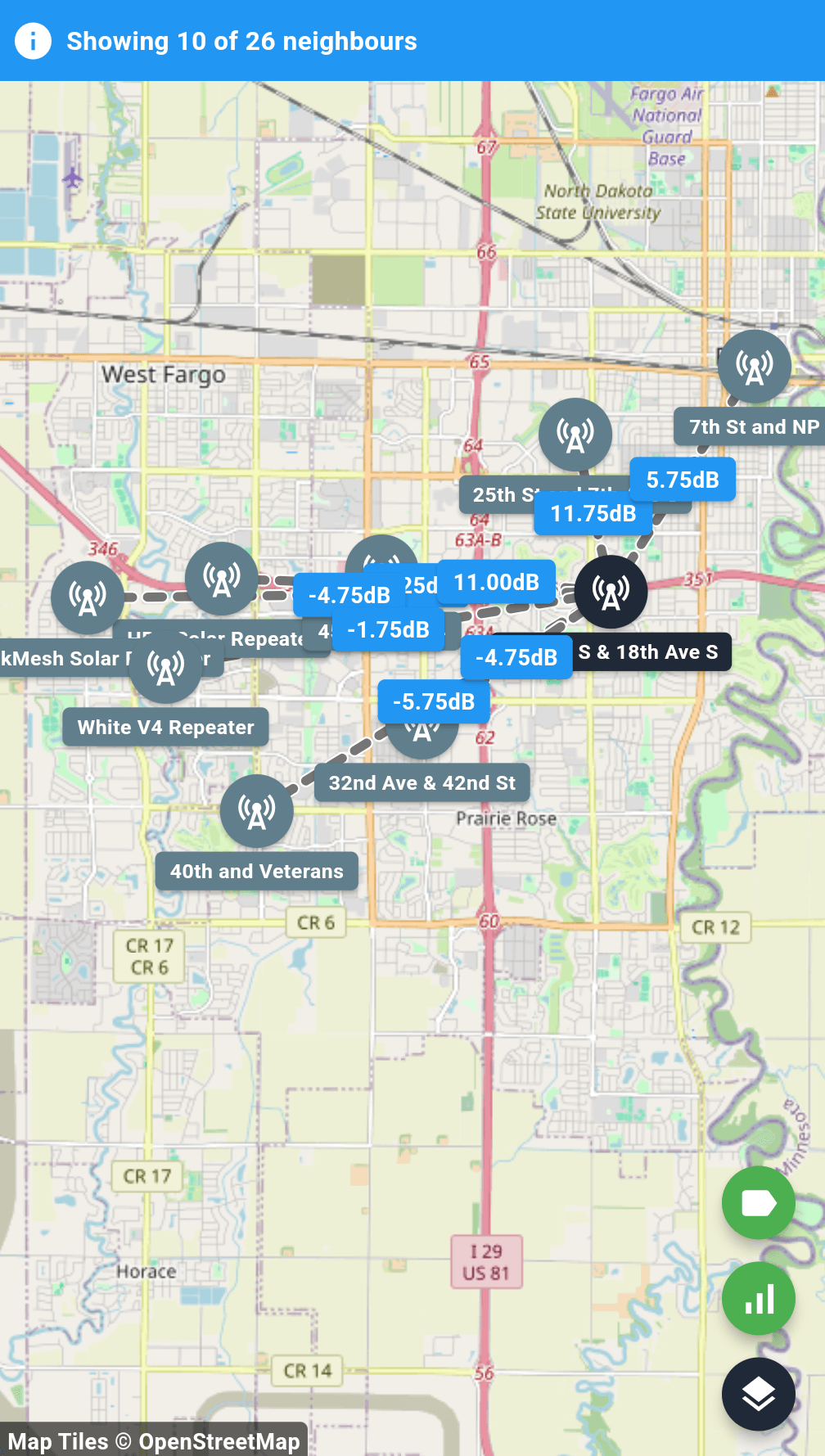
Without the Remote Management purchase, there’s a short wait before each remote session. Our repeater setup guide and room server guide cover what to set.
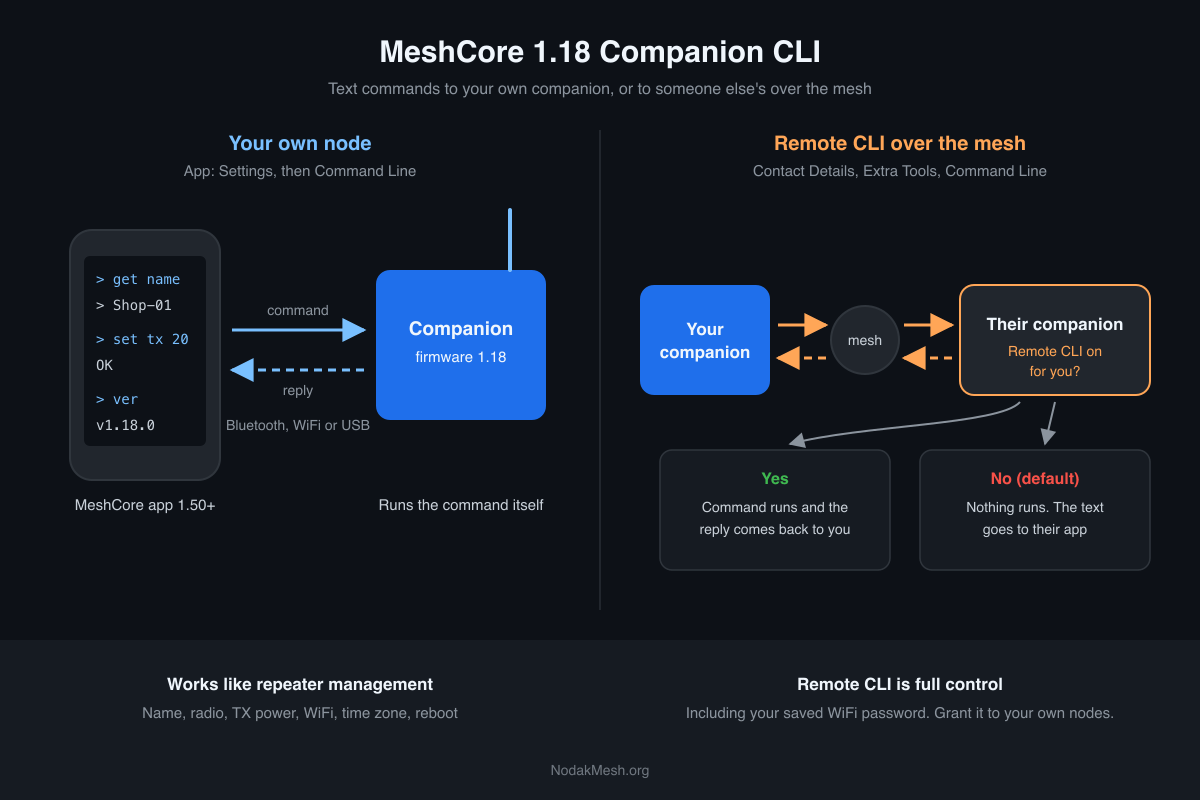
With companion firmware 1.18 or newer, your own companion has a command line too, under Settings. A contact can also be given Remote CLI permission over your companion. Only grant that to someone you fully trust: it lets them change your radio settings and reboot your node. Our companion CLI guide lists every command.
Settings Worth Knowing
- Path hash size. Larger path hashes (2 or 3 bytes) avoid routing mix-ups on big meshes, but repeaters older than firmware 1.14 drop those packets without telling you. Keep it at 1 byte until most repeaters near you are on 1.14 or newer. Path hash modes explained.
- Transmit power. Set in the app. Some boards, including the Heltec V4 and Station G2, have power limits of their own, so check your board before turning it up.
- Telemetry and contact permissions. Control which contacts can request your battery, location and sensor data.
- Backups. Export Settings saves your node’s identity key, contacts and channels; Import Settings restores them. Do this before reflashing. The file holds your private key, so store it like a password.
Common Problems
Nobody shows up in Contacts. Check that your preset matches the local mesh, then send a flood advert. Other nodes only appear once they send an advert too, so a quiet mesh can take a while. A node with the wrong clock can also fail to show up.
I can’t connect to my repeater over Bluetooth. That’s expected. Repeater firmware doesn’t take phone connections. Log in to it from a companion instead.
New people can’t message me. Your contact list may be full. Delete old contacts or limit auto-add.
Messages to one person keep failing. Reset the path for that contact and send again.
New to MeshCore? Start with our getting started guide, then pick hardware in the MeshCore device guide.
Comments
Related Posts
MeshCore Companion CLI Guide: Commands and Remote CLI
How to use the MeshCore companion CLI added in firmware 1.18: every command, WiFi setup over Bluetooth, and how to grant Remote CLI safely.
MeshCore Repeater Not Showing Up or Not Repeating? Fixes
Why a MeshCore repeater doesn't show up in the app or on the map, stops relaying, or won't log in, and the CLI commands that fix each one in 1.18.
MeshCore Open: Free Companion App for Android, iOS, Desktop
MeshCore Open is a free, open-source companion app for MeshCore LoRa mesh devices across Android, iOS, Linux, Windows, macOS, and web.